
Overview
This article explains how to set a benchmark in the Kinsman SitePoint app.
A benchmark establishes a height reference for your project. Rather than using elevation above sea level, many contractors assign a convenient value—such as 100 feet—to simplify cut and fill calculations in the field.
Before You Begin
Before you start, make sure you've created the point you want to use as the benchmark.
Step-by-Step Instructions
Step 1 — Open the Point Menu
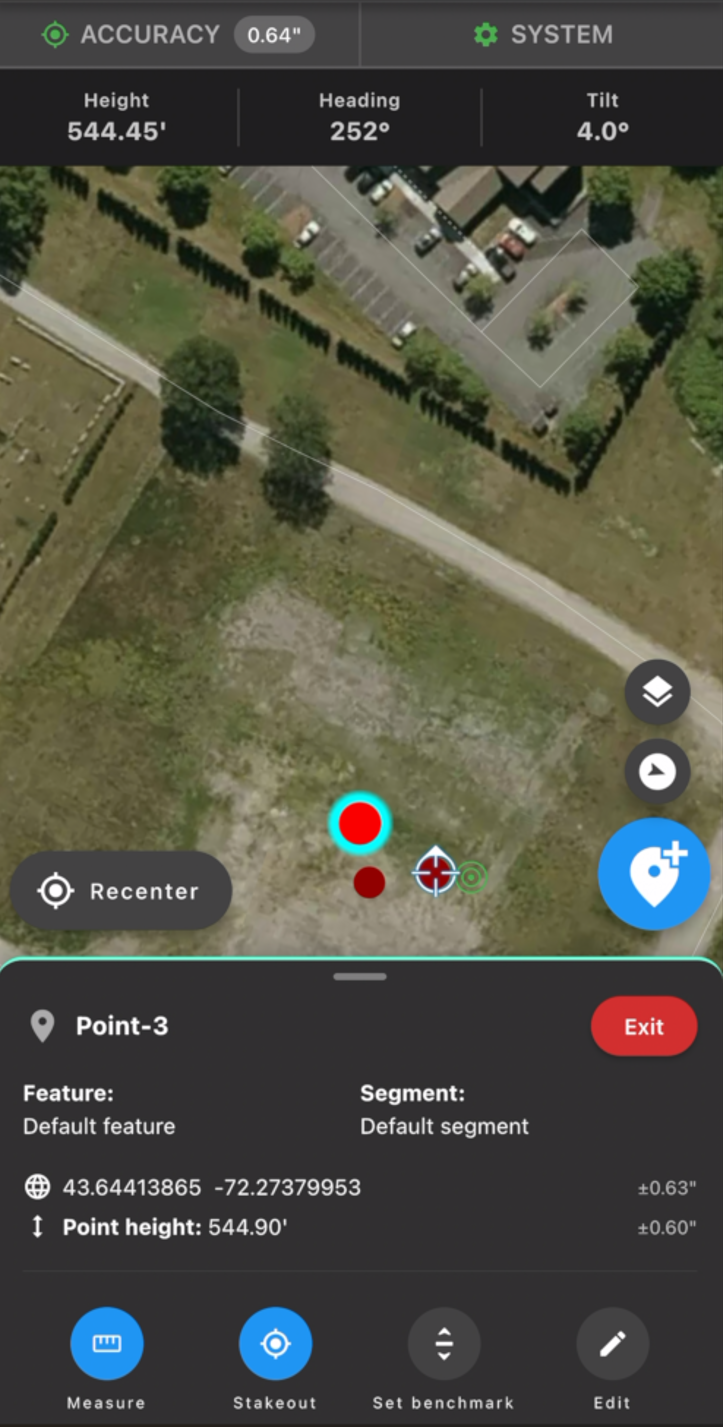
Tap the point you want to use as the benchmark. This will open up the point menu.
Step 2 — Set the Benchmark
Tap Set Benchmark.
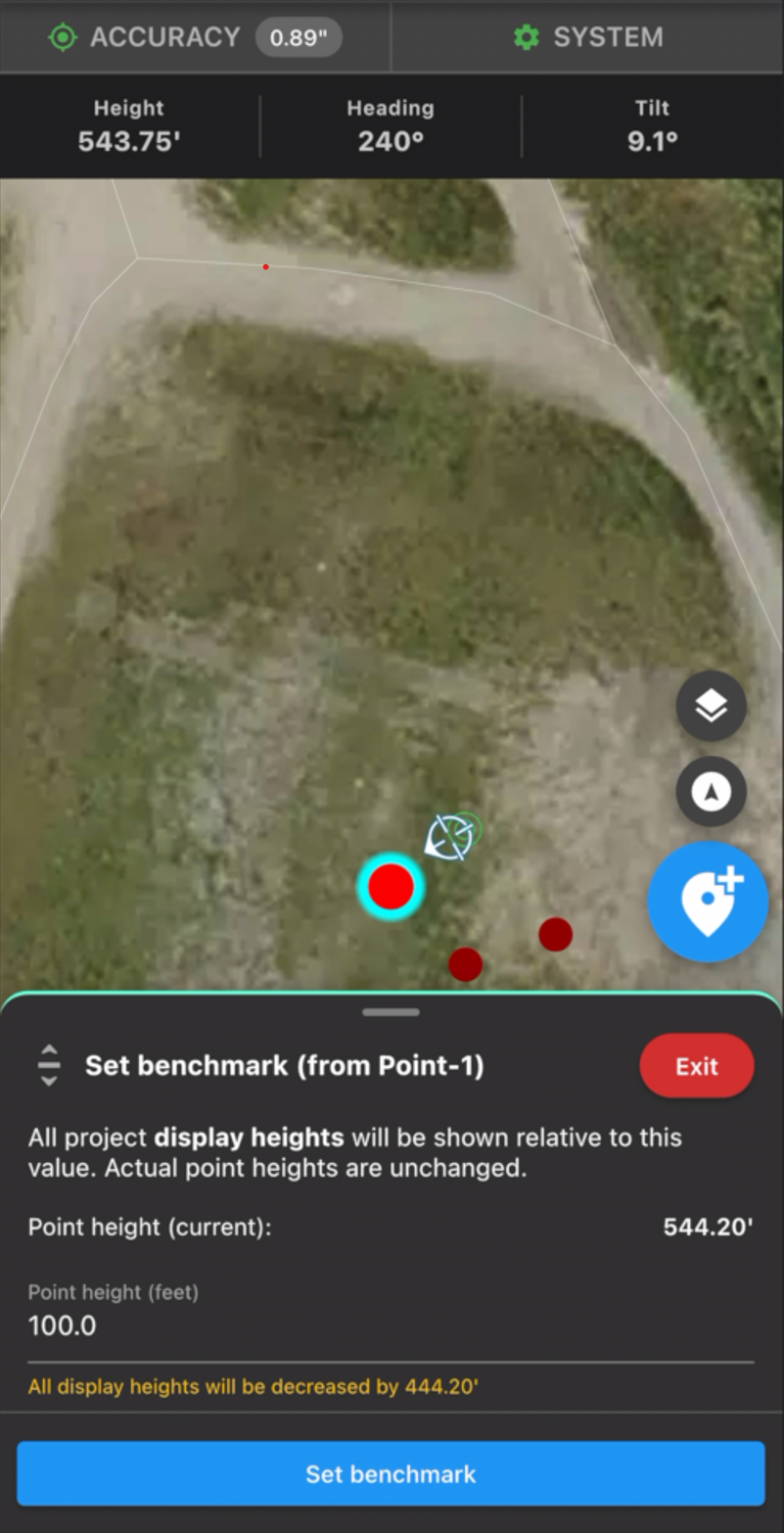
The app displays the point's current elevation and allows you to enter a new benchmark elevation.
By default, the benchmark is set to 100 feet, which is a common industry practice. However, you can enter any value that best fits your project.
Step 3 — Save the Benchmark
Tap Set Benchmark to apply the new elevation.
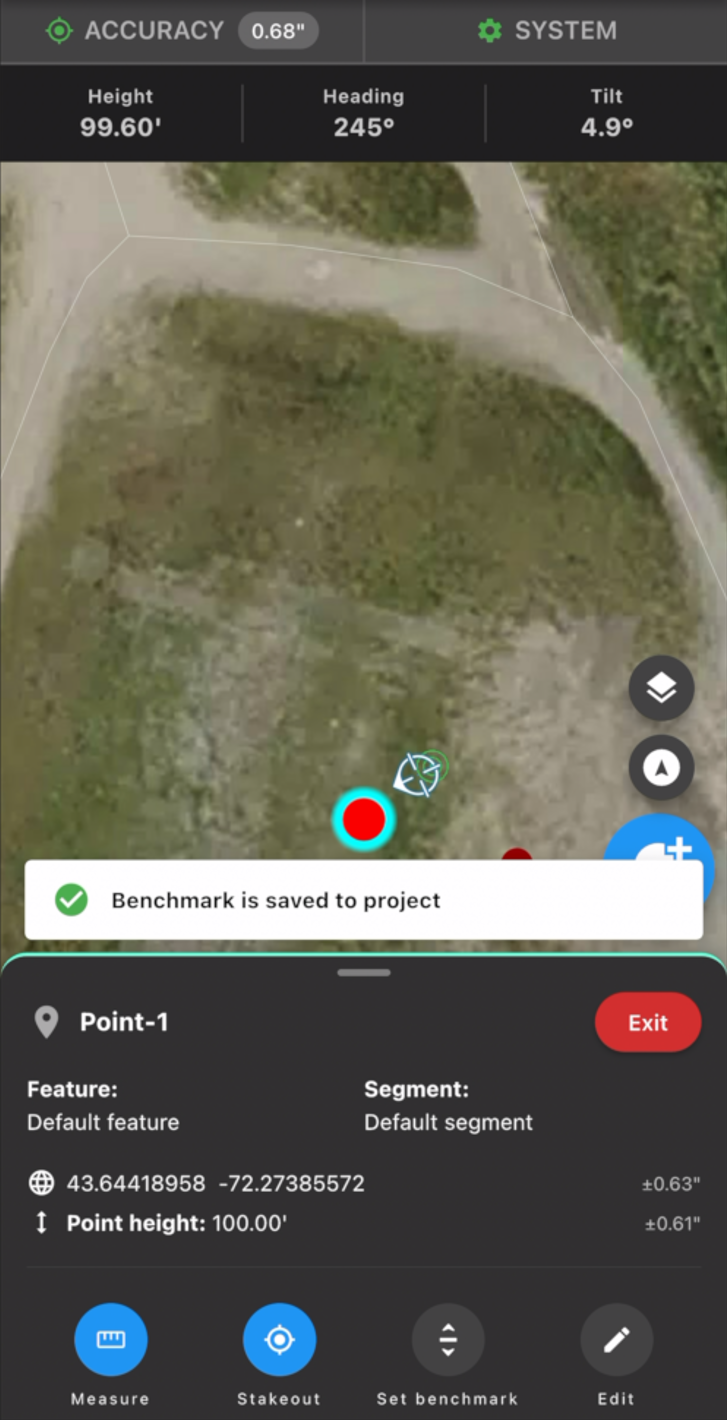
The Kinsman SitePoint app confirms that the benchmark has been saved.
After setting a benchmark, the elevation shown in the reference banner and the elevations of all existing and future points become relative to the benchmark. The actual elevations of your points remain unchanged.
Was this article helpful?
That’s Great!
Thank you for your feedback
Sorry! We couldn't be helpful
Thank you for your feedback
Feedback sent
We appreciate your effort and will try to fix the article