
Overview
This article explains how to create an account in the Kinsman mobile app.
Before You Begin
Before you start, make sure you:
Download the Kinsman SitePoint app on your smartphone or tablet from the Apple App Store or Google Play store
Connected your device to Wi-Fi or cellular data
Have access to the email address you want to use for your account
Step-by-Step Instructions
Step 1: Open the Kinsman App
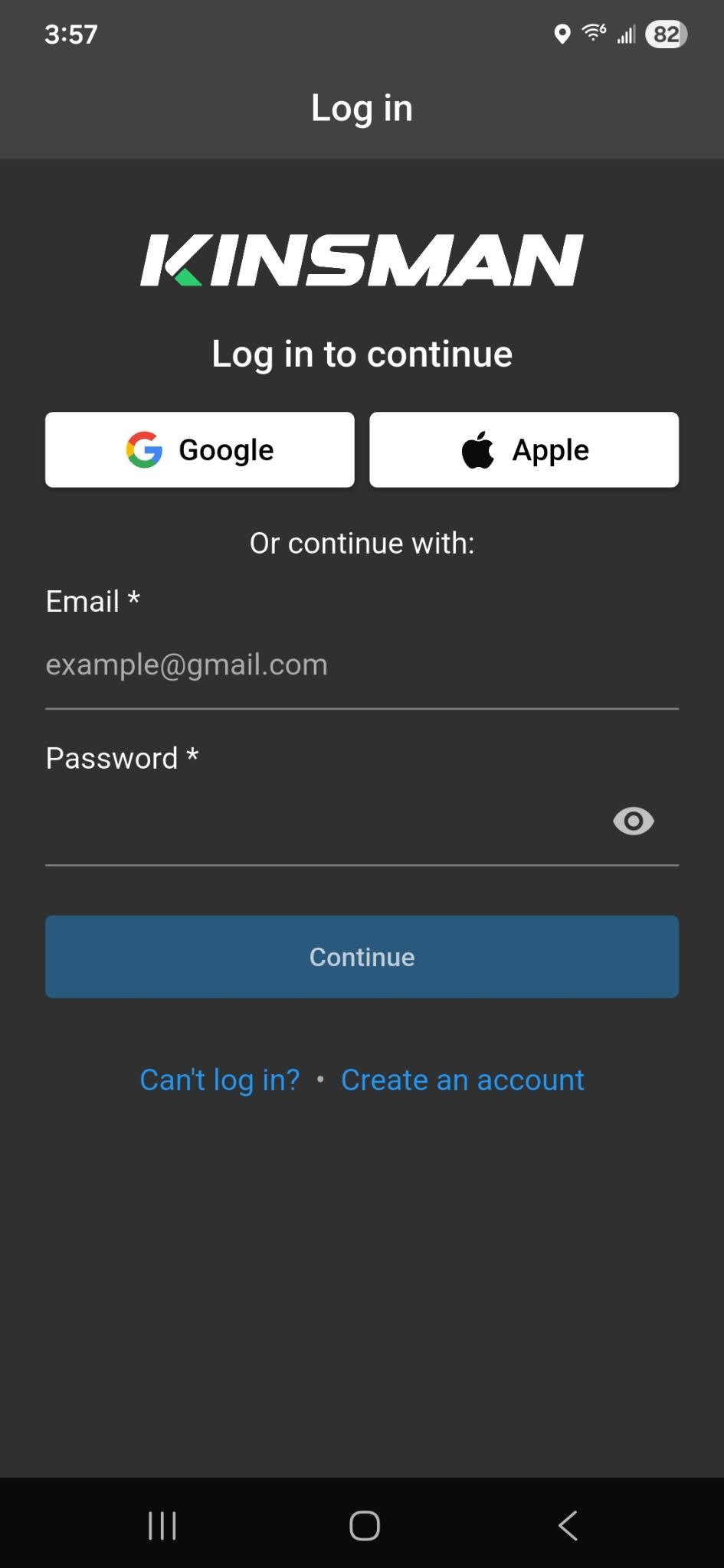
Open the Kinsman app on your device.
When the app opens, it will display the login screen.
Note:
If you already have an account, sign in using Google, Apple, or your email address and password.
If you forgot your password, follow the instructions in the How to Reset Your Password article. [Insert Link]
Step 2: Tap “Create an Account”
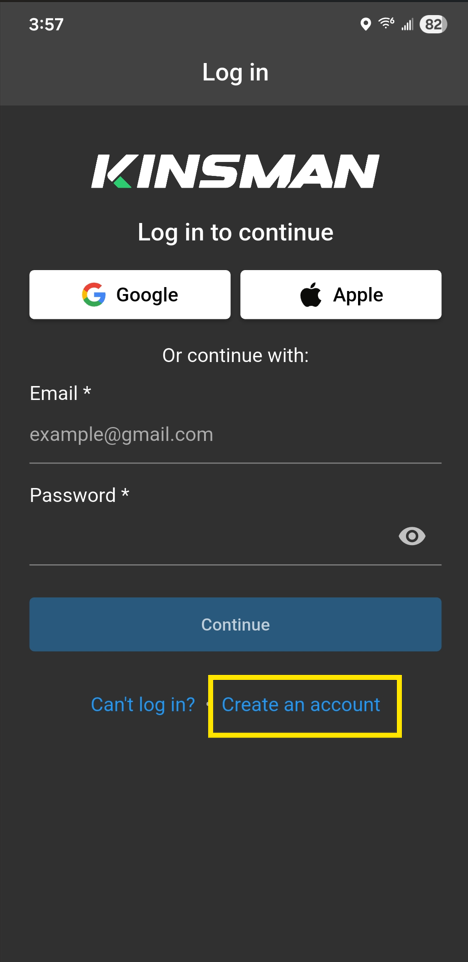
On the login screen, tap Create an account.
Step 3: Choose an Account Creation Method
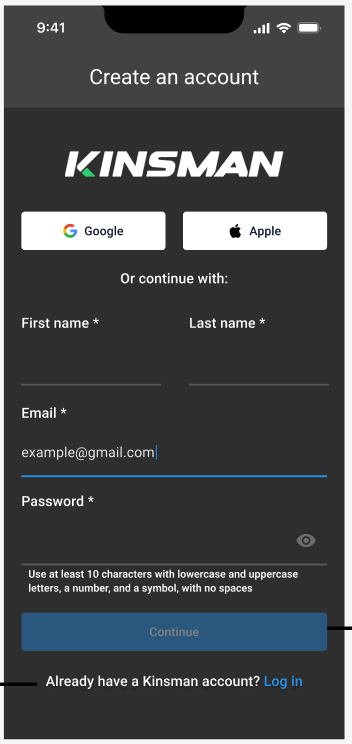
You can create your account using one of the following methods:
Google:
Use a Google account already connected to your device for faster account creation.
Tap the Google button and follow the prompts.
Apple:
Use your Apple ID to create your account.
Tap the Apple button and follow the prompts.
Name and Email Address:
Create an account using your:
First name
Last name
Email address
Password
Enter your information and tap Continue.
Step 4: Verify Your Email Address
After you create your account, Kinsman will send a verification email to the address you entered.
Open the verification email
Tap the verification link
After you verify your email address, the app will redirect you to the Select Work Profile screen.
You have successfully created your account.
Troubleshooting
Was this article helpful?
That’s Great!
Thank you for your feedback
Sorry! We couldn't be helpful
Thank you for your feedback
Feedback sent
We appreciate your effort and will try to fix the article