
Overview
This article walks you through checking for and installing firmware updates on your SitePoints using the Kinsman SitePoint app.
Before You Begin
Make sure your SitePoints have at least 25% battery remaining.
Power on your SitePoints.
Step-by-Step Instructions
Step 1 — Open the Nearby sensors page
Open the Kinsman SitePoint app.
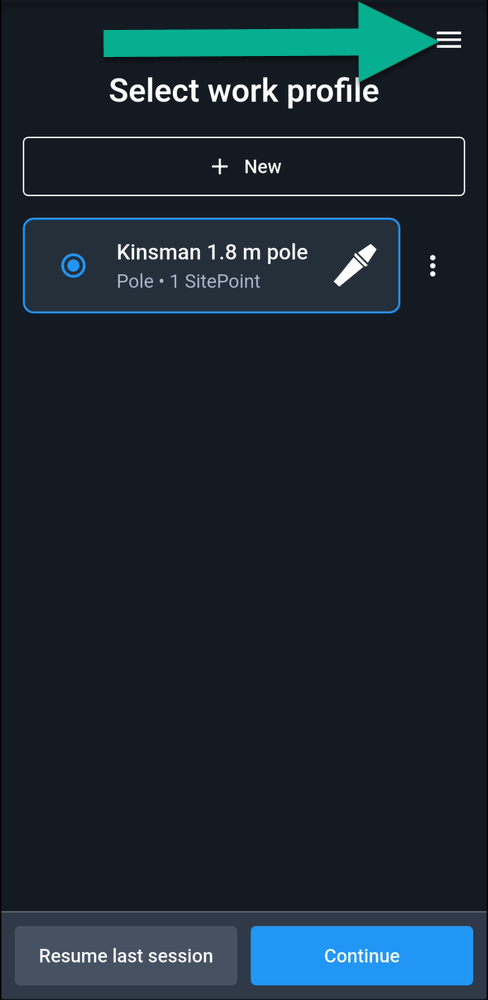
From the Work profile page, tap the three-line menu in the upper-right corner.
Select Nearby sensors.
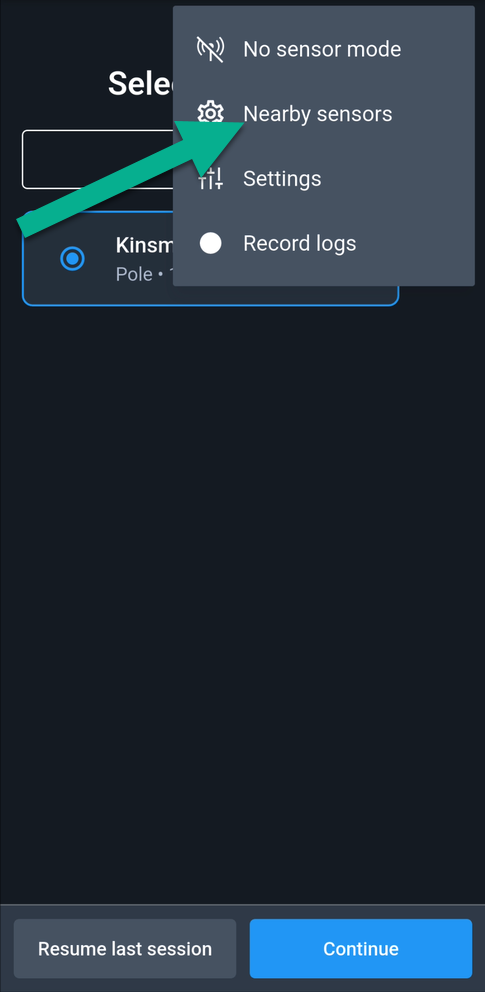
Your powered-on SitePoints will appear on this page.
Step 2 — Check your firmware status
Each SitePoint will display its firmware update status.
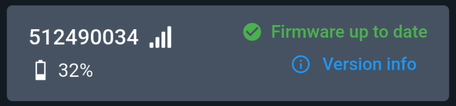
If your firmware is up to date:
A green check mark and the message “Firmware up to date” will appear. Tap the blue version information text to view details about the current firmware version.
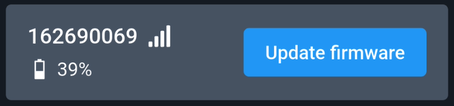
If an update is available:
A blue “Update firmware” button will appear, provided your SitePoint has sufficient battery.
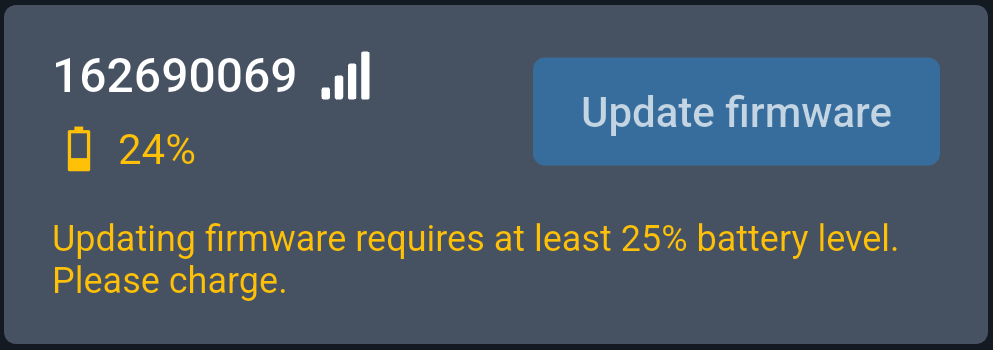
If your battery is below 25% the “Update firmware” button will be grayed out, and a message will indicate that at least 25% battery is required. Charge your SitePoint before proceeding.
Step 3 — Update your firmware
Tap Update firmware to view the update details, including any changes included in the new version.
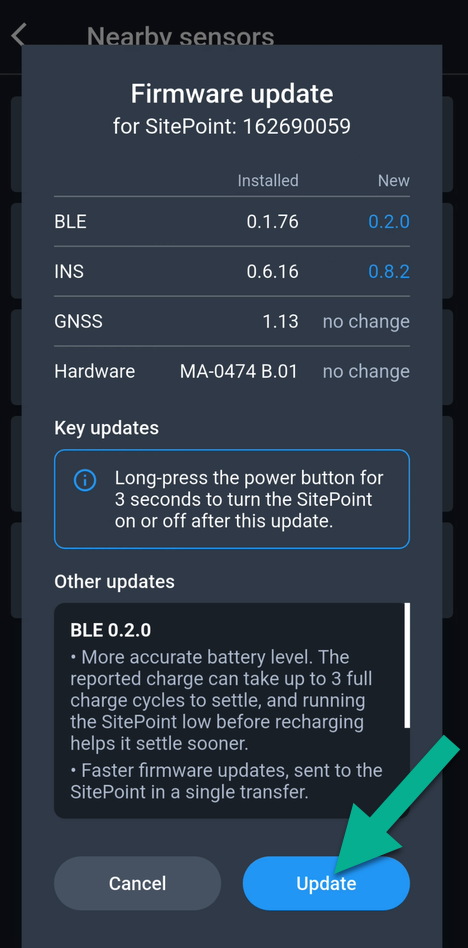
Tap Update to begin the update, or Cancel to return to the previous screen.
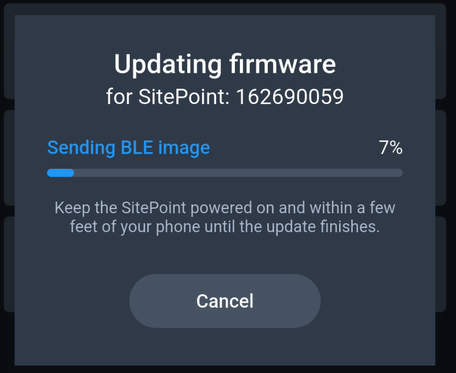
Keep your SitePoint powered on and within a few feet of your phone until the update is complete.
Step 4 — Confirm the update
Once the update finishes, a confirmation screen will display the newly installed firmware version.
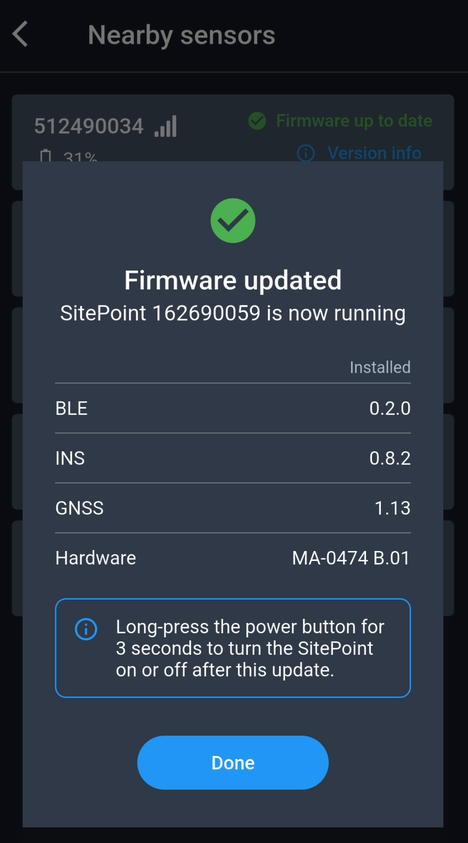
Tap Done to return to the Nearby sensors page.
Repeat this process for each SitePoint that needs an update.
Was this article helpful?
That’s Great!
Thank you for your feedback
Sorry! We couldn't be helpful
Thank you for your feedback
Feedback sent
We appreciate your effort and will try to fix the article