
Overview
This article explains how to reset your password in the Kinsman mobile app.
Before You Begin
Before you start, make sure you:
Connect your device to Wi-Fi or cellular data
Have access to the email address associated with your Kinsman account
Step-by-Step Instructions
Step 1: Start the Password Reset Process
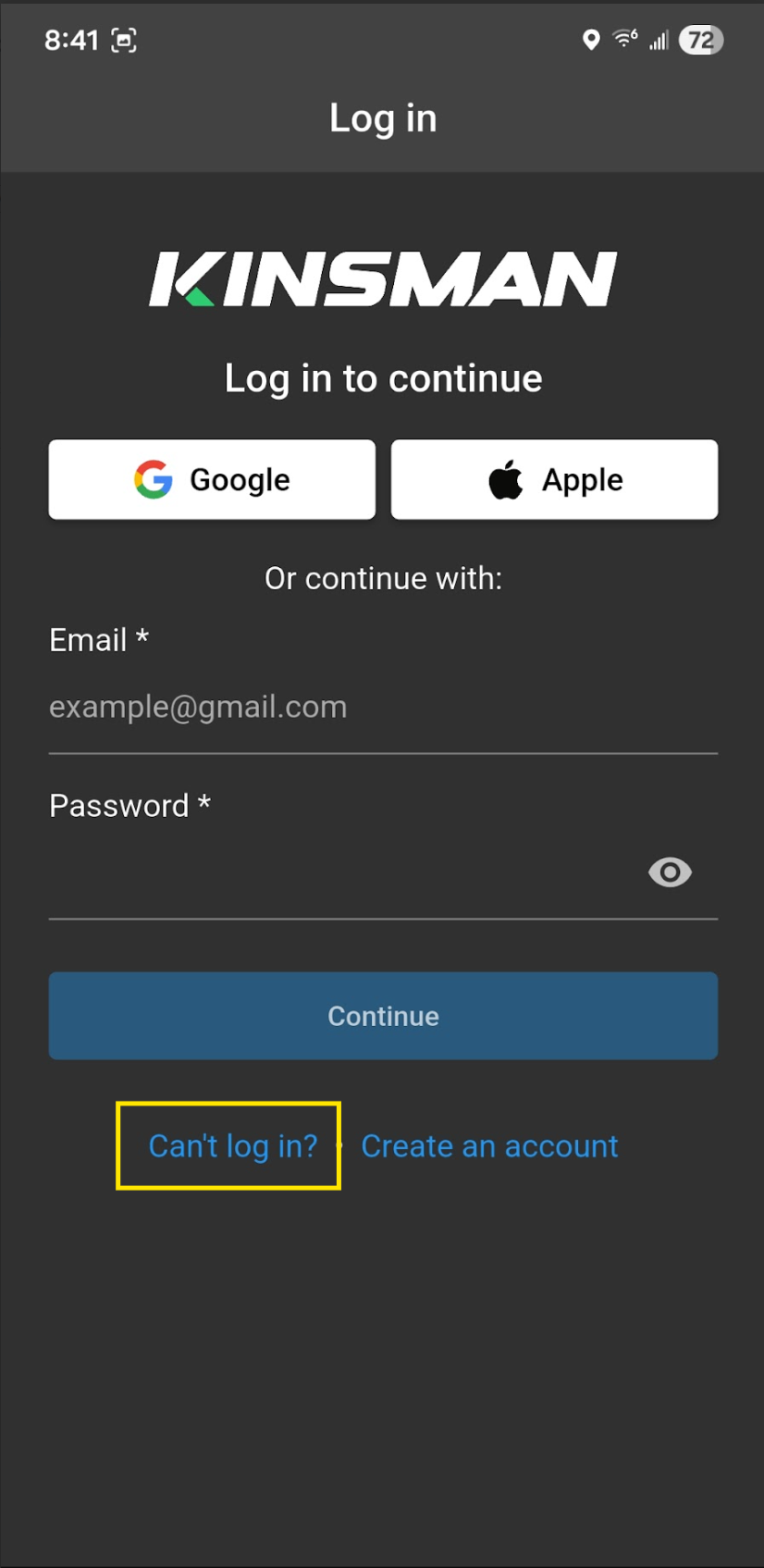
On the login screen, tap Can’t Log In?
Step 2: Enter Your Email Address
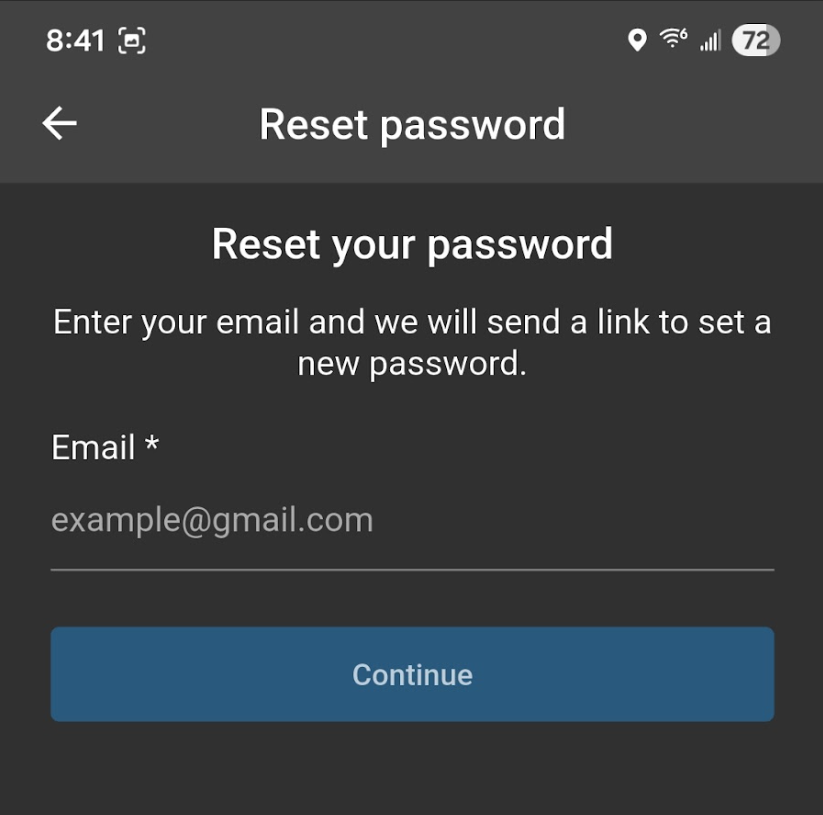
Enter the email address associated with your account.
Tap Continue.
Step 3: Check Your Email
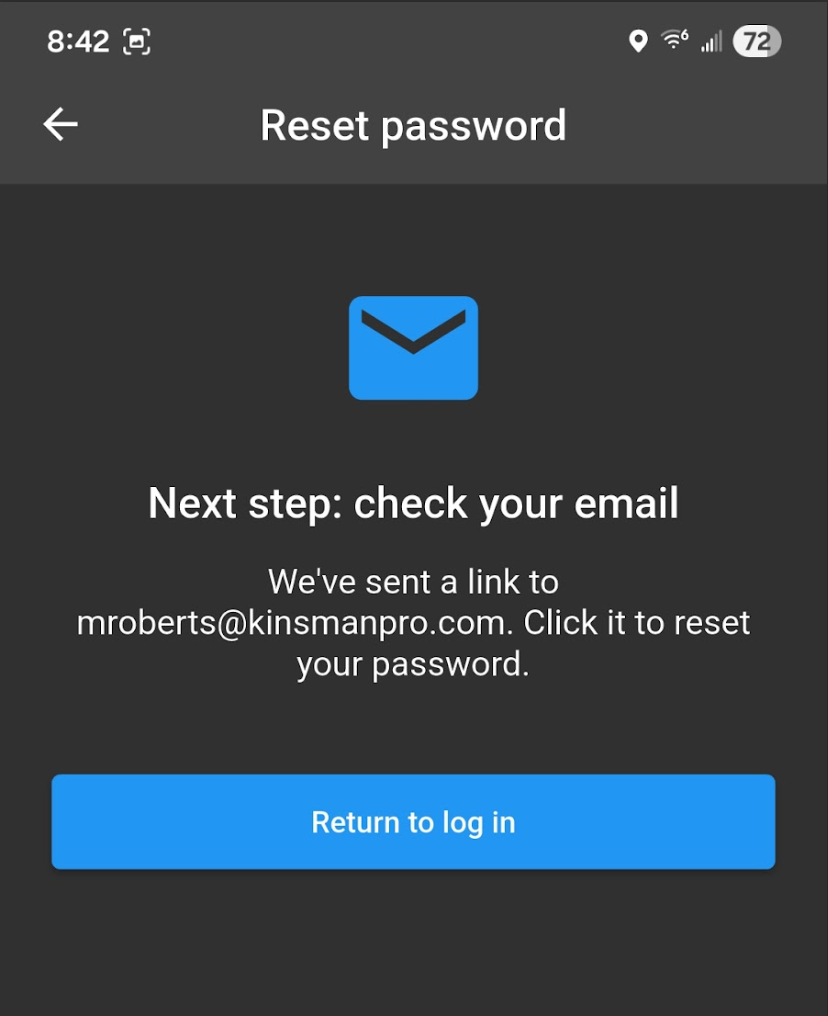
Open the password reset email sent to your inbox.
Tap the password reset link
Enter and confirm your new password
Complete the password reset process
After you reset your password:
Return to the Kinsman app
Tap Return to Log In
Sign in using your email address and new password
Troubleshooting
Related Articles
Account Creation
View Your Account Information
Delete Your Account
Was this article helpful?
That’s Great!
Thank you for your feedback
Sorry! We couldn't be helpful
Thank you for your feedback
Feedback sent
We appreciate your effort and will try to fix the article