
Overview
No Sensor Mode allows you to open and work within a project in the Kinsman SitePoint app without connecting your SitePoints.
This gives you the flexibility to continue working with your project even when you're away from the jobsite. You can collect the information you need while you're in the field, then continue planning or setting up your project later from home or the office. You can also quickly return to an existing project when you need to review or gather information from the work you've already completed.
In this article, we'll explain how to access No Sensor Mode and which tools are available.
Before You Begin
No additional setup is required to access No Sensor Mode.
However, if you plan to use PDF import or Shape layout away from the jobsite, establish your control point and drop any necessary reference points while you're in the field.
These existing project points can then be used to position and rotate your PDF or shapes while working in No Sensor Mode.
Step-by-Step Instructions
Step 1 — Access No Sensor Mode
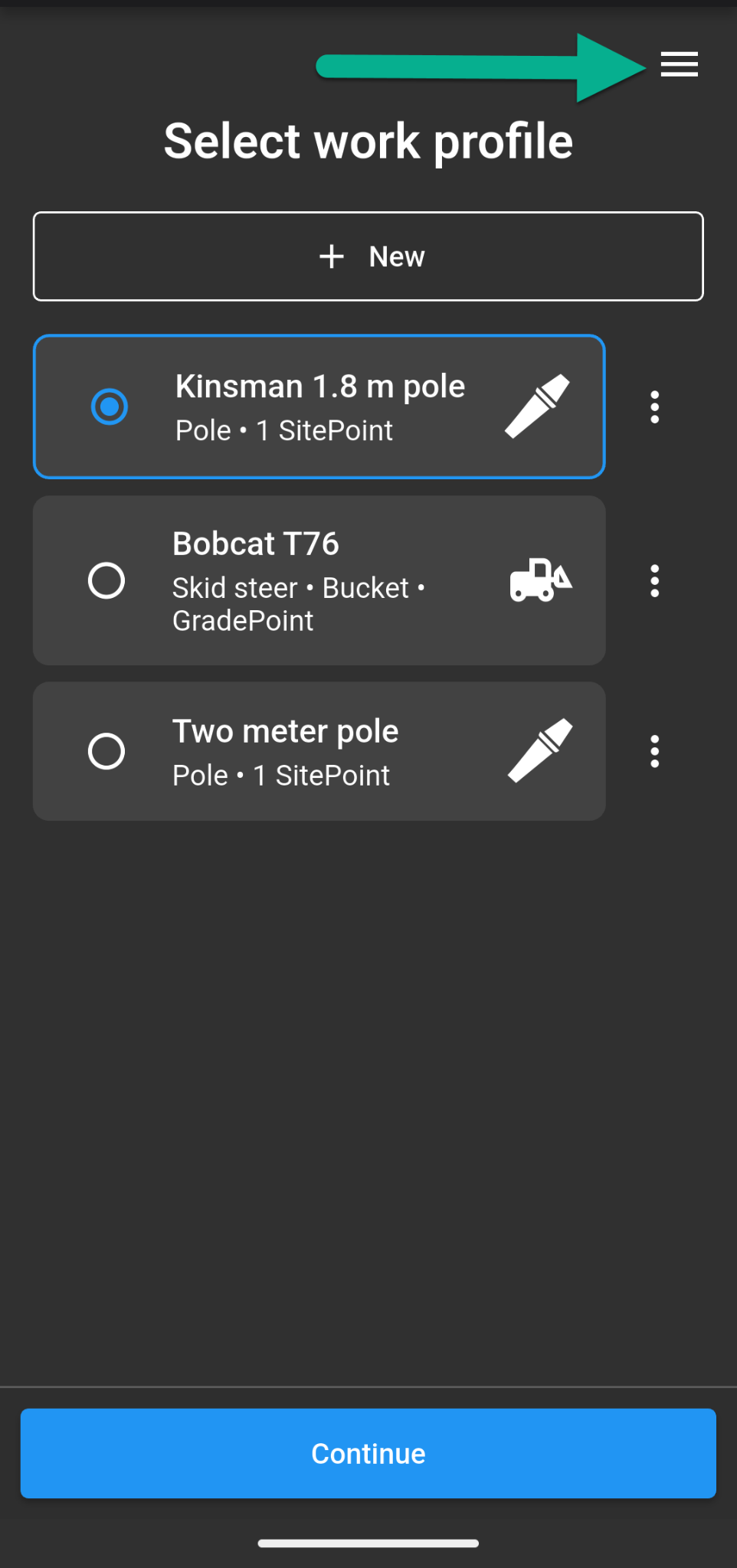
From the Select Work Profile screen, tap the three-line menu in the top-right corner.
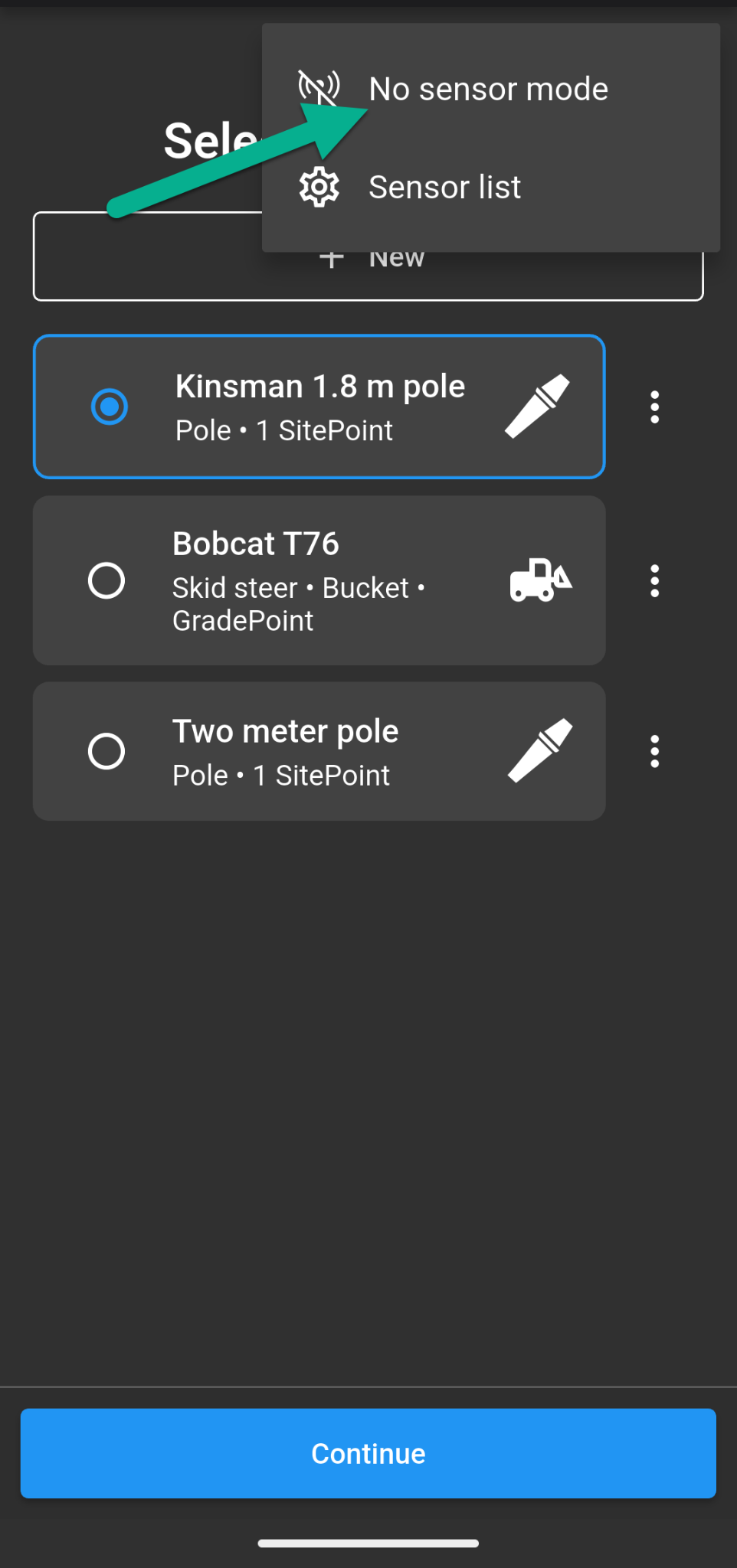
Tap No Sensor Mode.
Step 2 — Select Your Project
Select the project you want to work in.
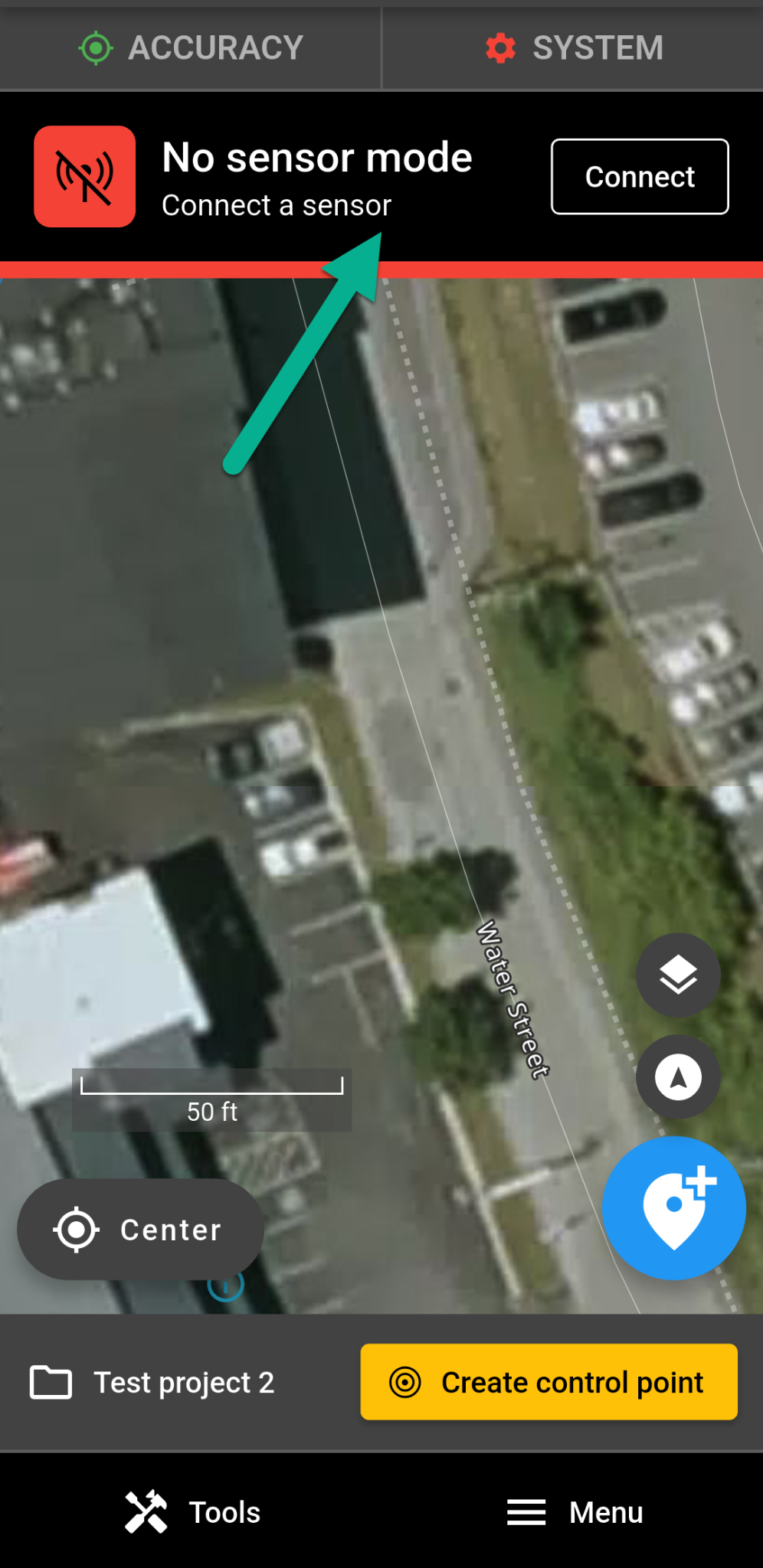
Your project will open in No sensor mode, allowing you to work without connecting your SitePoints.
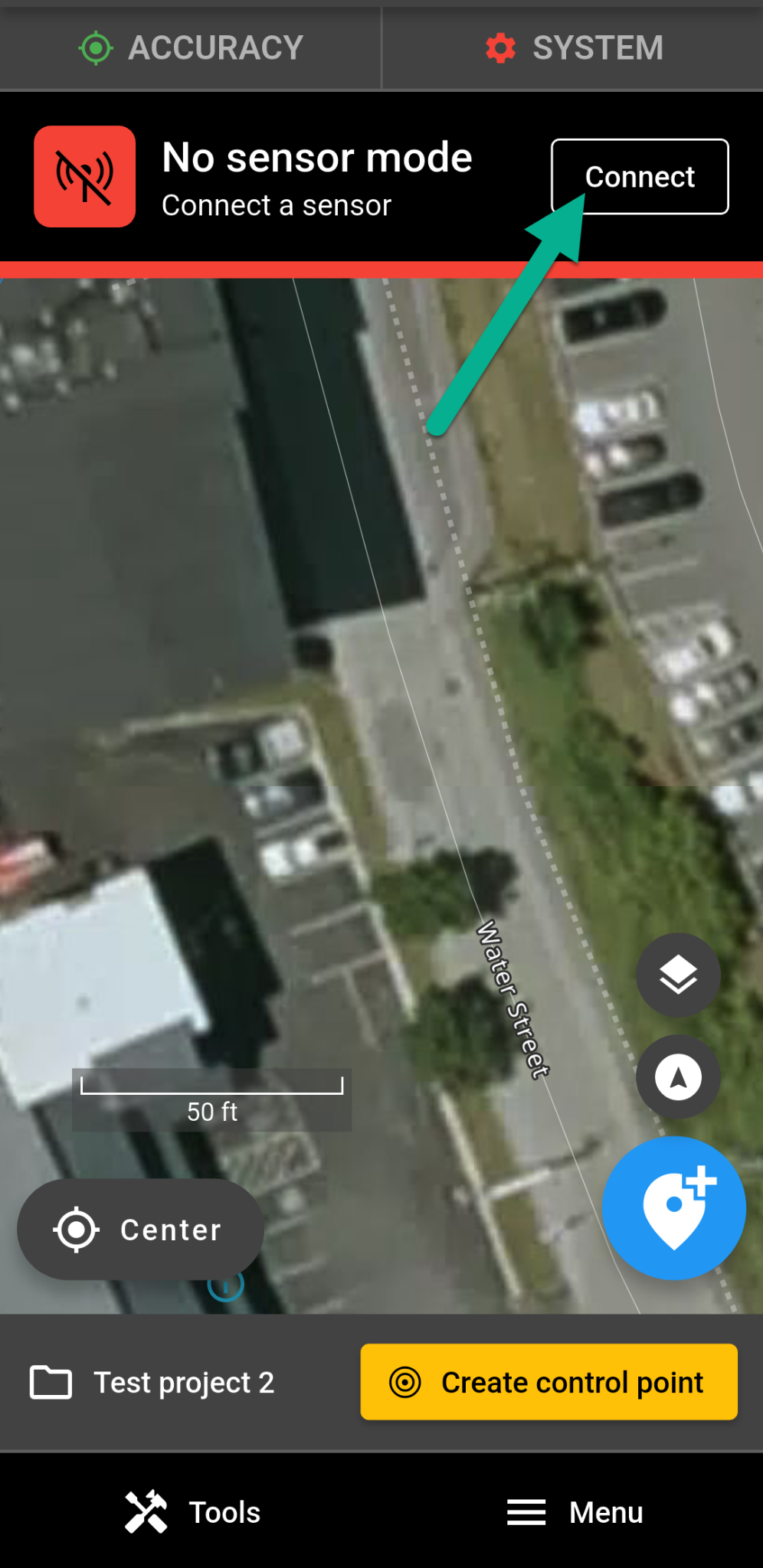
You can connect your SitePoints by tapping the connect button in the No sensor mode banner.
Tools Available in No Sensor Mode
PDF import
Use PDF import to set up a PDF plan without connecting your SitePoints.
Before leaving the jobsite, establish your control point and drop two reference points that you can also identify on the PDF. You'll use one point to position the PDF and the second to rotate it.
When you're ready to connect your SitePoints, tap Connect in the No Sensor Mode banner at the top of the screen. You can then connect your SitePoints and continue working in the project.
Shape layout
Use Shape layout to create rectangles, lines, and circles without connecting your SitePoints.
Before leaving the jobsite, drop any reference points you'll need to position and rotate your first shape.
Once you've created your first shape, you can use the points generated by that shape to position and rotate additional shapes. For example, you can combine multiple rectangles to create the layout for an L-shaped home.
Distance between points
Use Distance between points to measure the distance between any two existing points in your project without connecting your SitePoints.
This is useful when reviewing or planning a project away from the jobsite. For example, if you've already dropped several points while in the field and later need to know the distance between two of them, you don't need to return to the jobsite or connect your SitePoints. Open the project in No Sensor Mode, select the two points, and view the distance between them.
You can measure between points you've dropped in the field as well as points created using Shape layout.
Was this article helpful?
That’s Great!
Thank you for your feedback
Sorry! We couldn't be helpful
Thank you for your feedback
Feedback sent
We appreciate your effort and will try to fix the article