
Overview
This article explains what a work profile is and how to create, edit, and delete a Pole work profile in the Kinsman mobile app.
Before You Begin
Before you start, make sure you know the height of your survey pole in meters.
What Is a Work Profile?
A work profile contains the tool and equipment configuration settings used by your SitePoints during a work session. The app uses these settings to determine how the sensors are mounted and operated.
Examples of work profiles include:
One SitePoint mounted on a survey pole
Two SitePoints mounted on a machine
You can create multiple work profiles to match the equipment you use in the field.
The Kinsman app includes a default survey pole profile called Kinsman 1.8m Pole.
Select Work Profile Screen
When you open the app, the Select Work Profile screen appears.
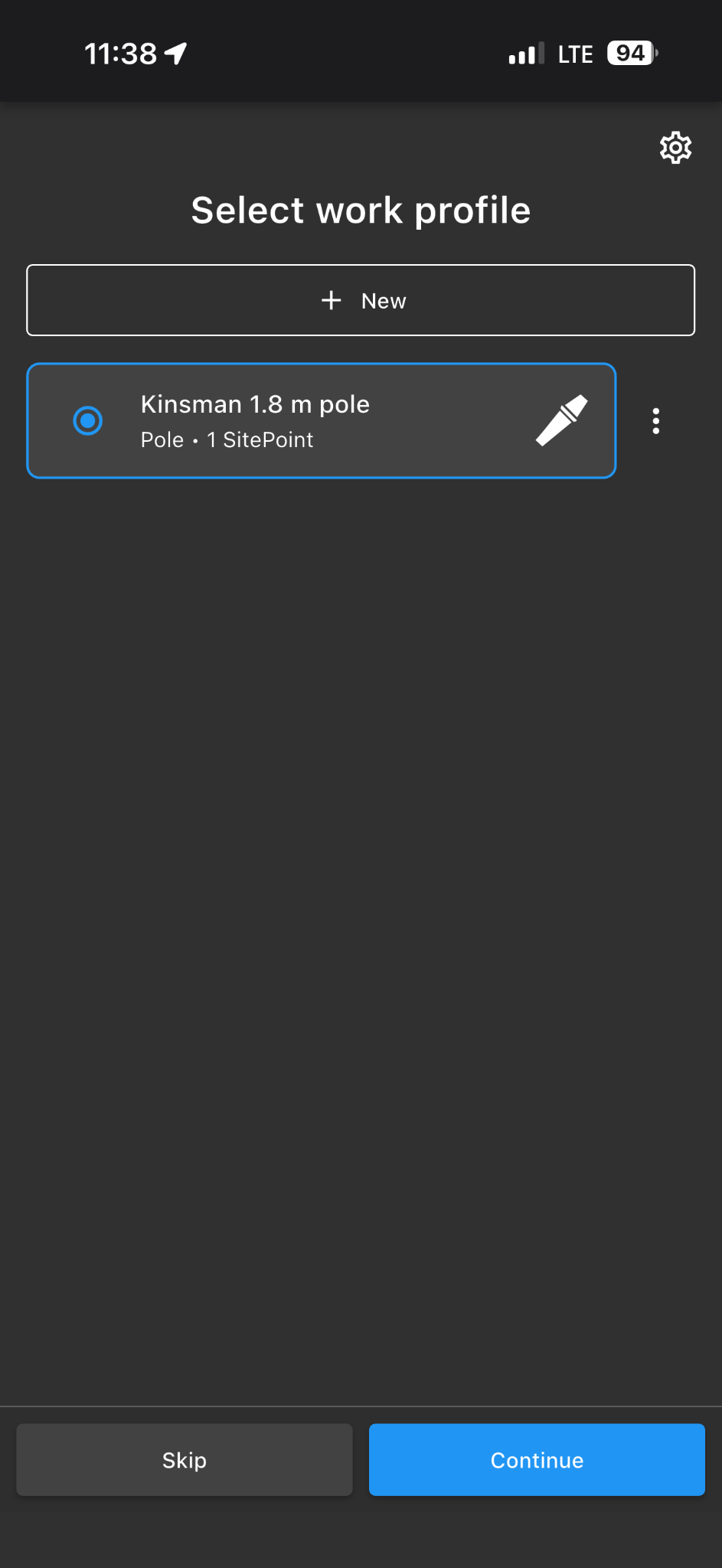
From this screen, you can:
Create a new work profile
Edit an existing work profile
Delete an existing work profile
Creating a New Pole Work Profile
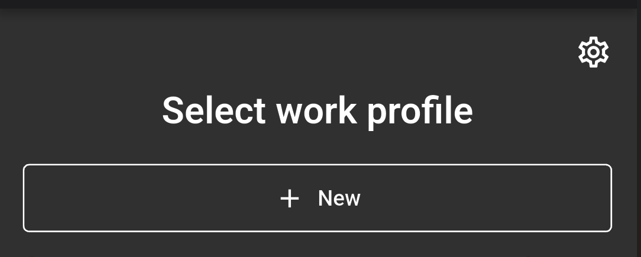
Step 1: Tap "+ New"
From the Select Work Profile screen, tap + New.
Step 2: Enter Profile Information
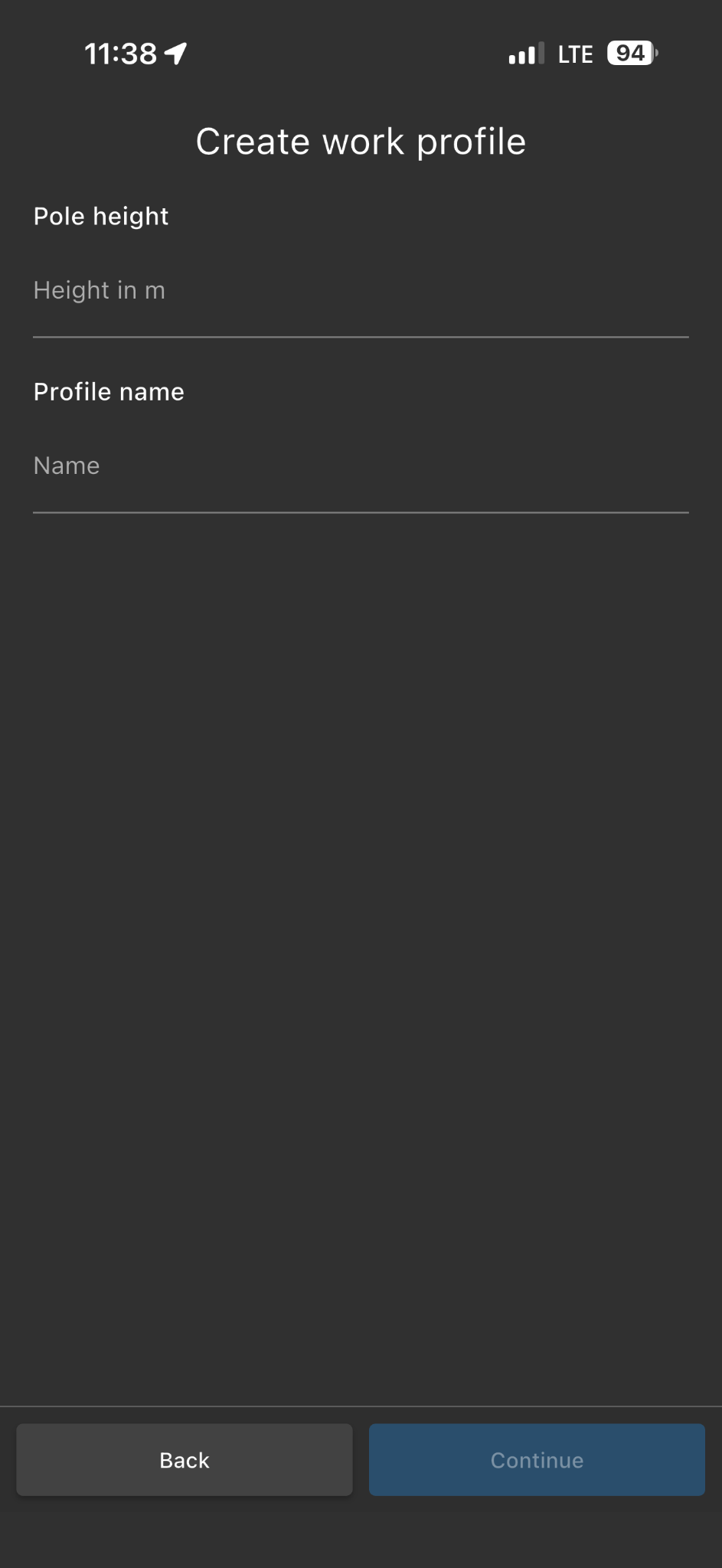
Enter the following information:
Survey pole height (in meters)
Profile name
After entering the required information, tap Continue.
Step 3: Complete Profile Creation
Review the profile information and complete the setup process.
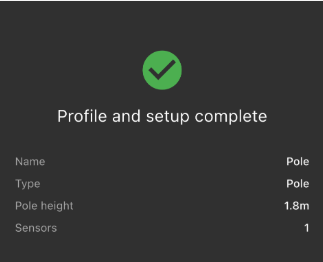
Once the profile is created, it will appear in your list of available work profiles.
You have successfully created a new Pole work profile.
Editing a Pole Work Profile
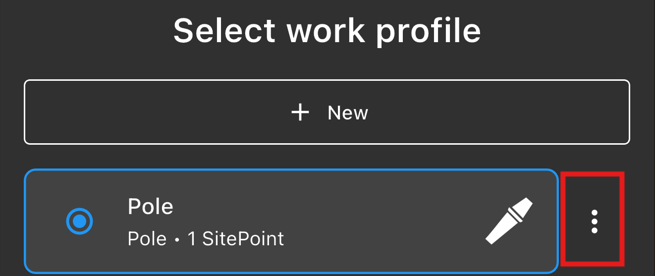
Step 1: Open Profile Options
On the Select Work Profile screen, tap the three-dot menu next to the profile you want to edit.
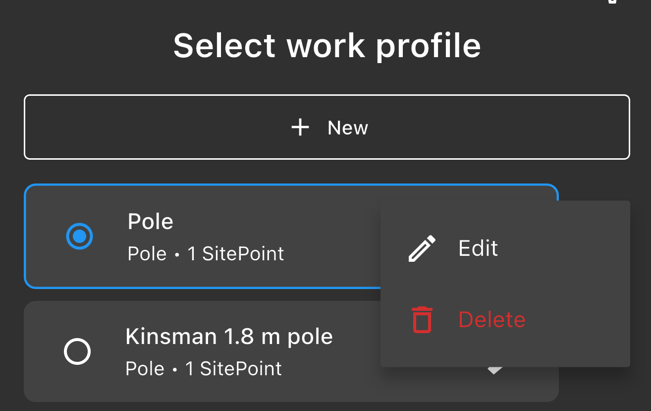
Step 2: Tap "Edit"
Select Edit from the menu.
Step 3: Update Profile Information
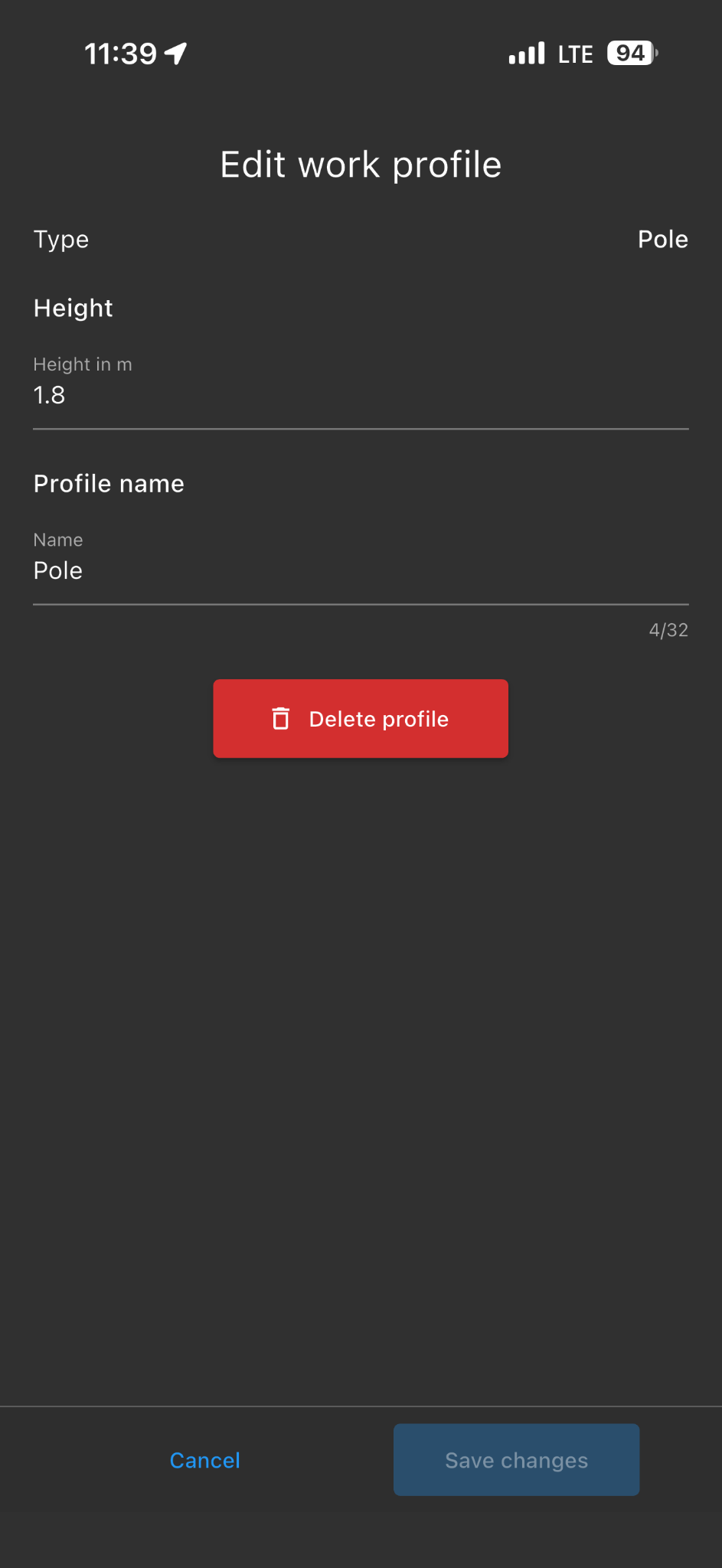
You can make the following changes:
Update the survey pole height
Rename the profile
Delete the profile
After making your changes, tap Save Changes.
Deleting a Pole Work Profile
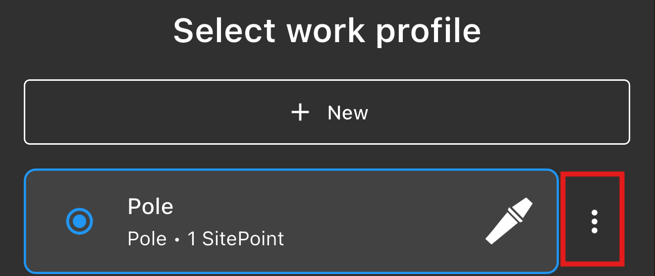
Step 1: Open Profile Options
On the Select Work Profile screen, tap the three-dot menu next to the profile you want to delete.
Step 2: Tap "Delete"
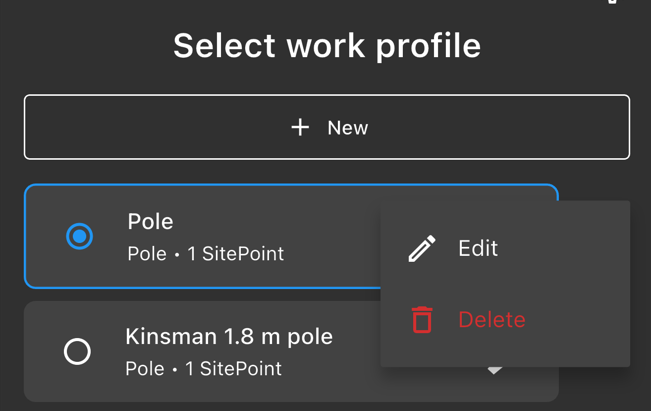
Select Delete from the menu.
Step 3: Confirm Deletion
When prompted, tap Delete to confirm.
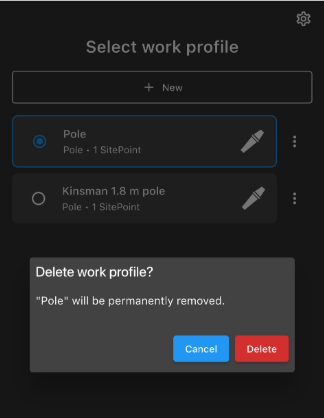
The app permanently removes the profile from your account.
Note: Deleting a work profile cannot be undone. Make sure you no longer need the profile before confirming deletion.
Expected Result:
The new Pole work profile appears on the Select Work Profile screen and is available for use and can be edited and deleted by the user.
Was this article helpful?
That’s Great!
Thank you for your feedback
Sorry! We couldn't be helpful
Thank you for your feedback
Feedback sent
We appreciate your effort and will try to fix the article