
Overview
This article explains what a project is and how to create, delete, and edit the name of projects in the Kinsman mobile app.
Before You Begin
Before you start, make sure you:
Set up and select a work profile
Connect to your SitePoints
Important: Kinsman recommends completing these steps before proceeding. If necessary, you can tap Skip on the Select Work Profile screen and configure your work profile and SitePoints later.
What Is a Project?
A project stores the layout information for a specific job site. It contains your control point, dropped points, and shapes you have created..
When you create a new project, the Kinsman app automatically names it using the address detected by your device's GPS. You can rename the project at any time if you prefer a different name.
Select Project Screen
After you set up your work profile and connect your SitePoints, the app displays the Select Project screen.
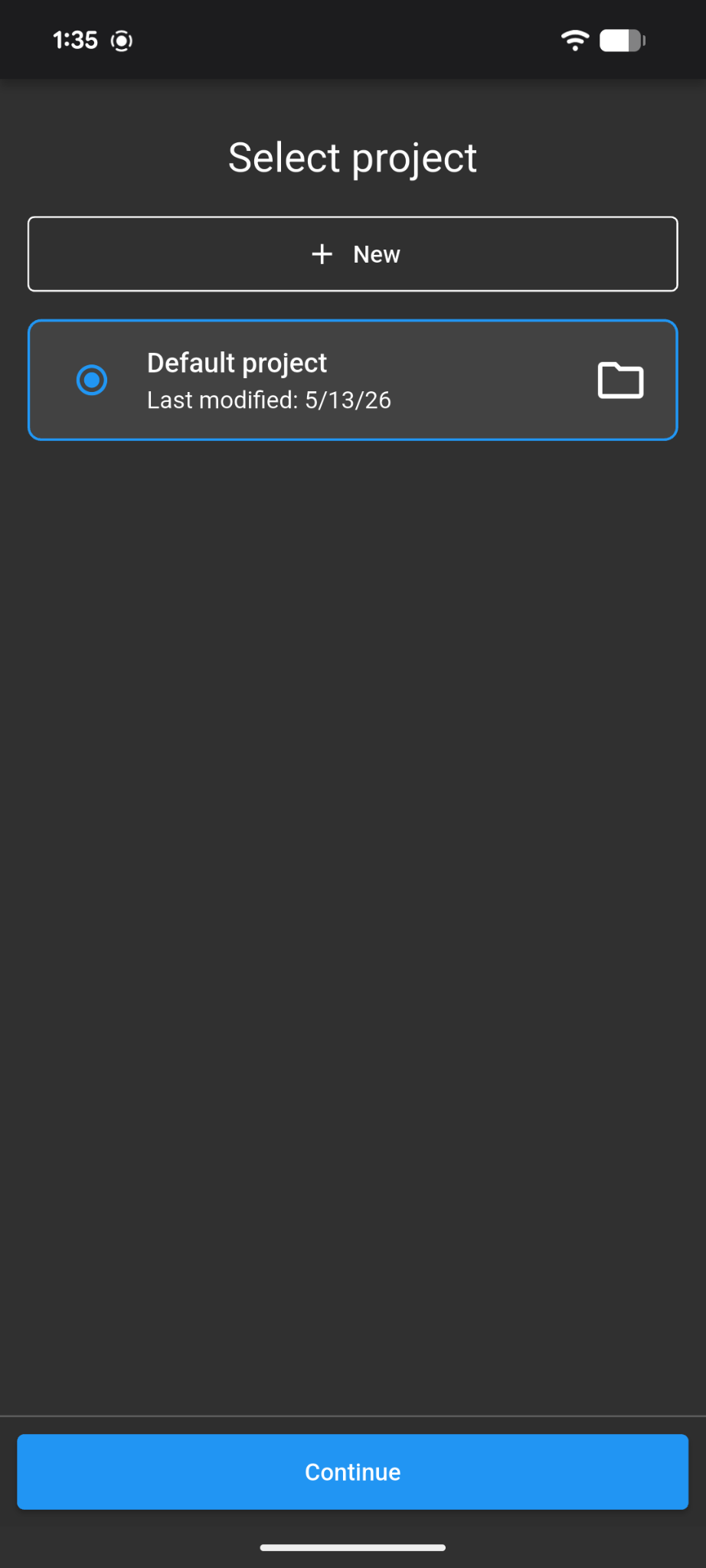
From this screen, you can:
Create a new project
Edit a project name
Delete a project
Creating a New Project
Step 1: Tap "+ New"
From the Select Project screen, tap + New.
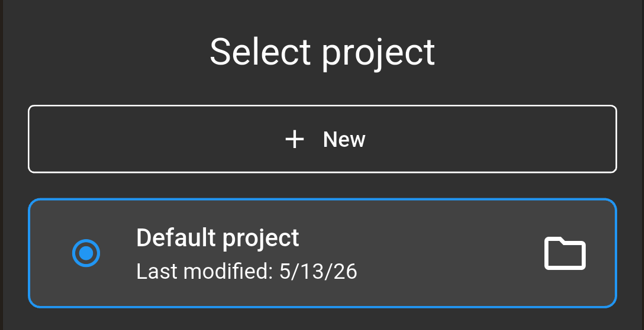
Step 2: Name Your Project
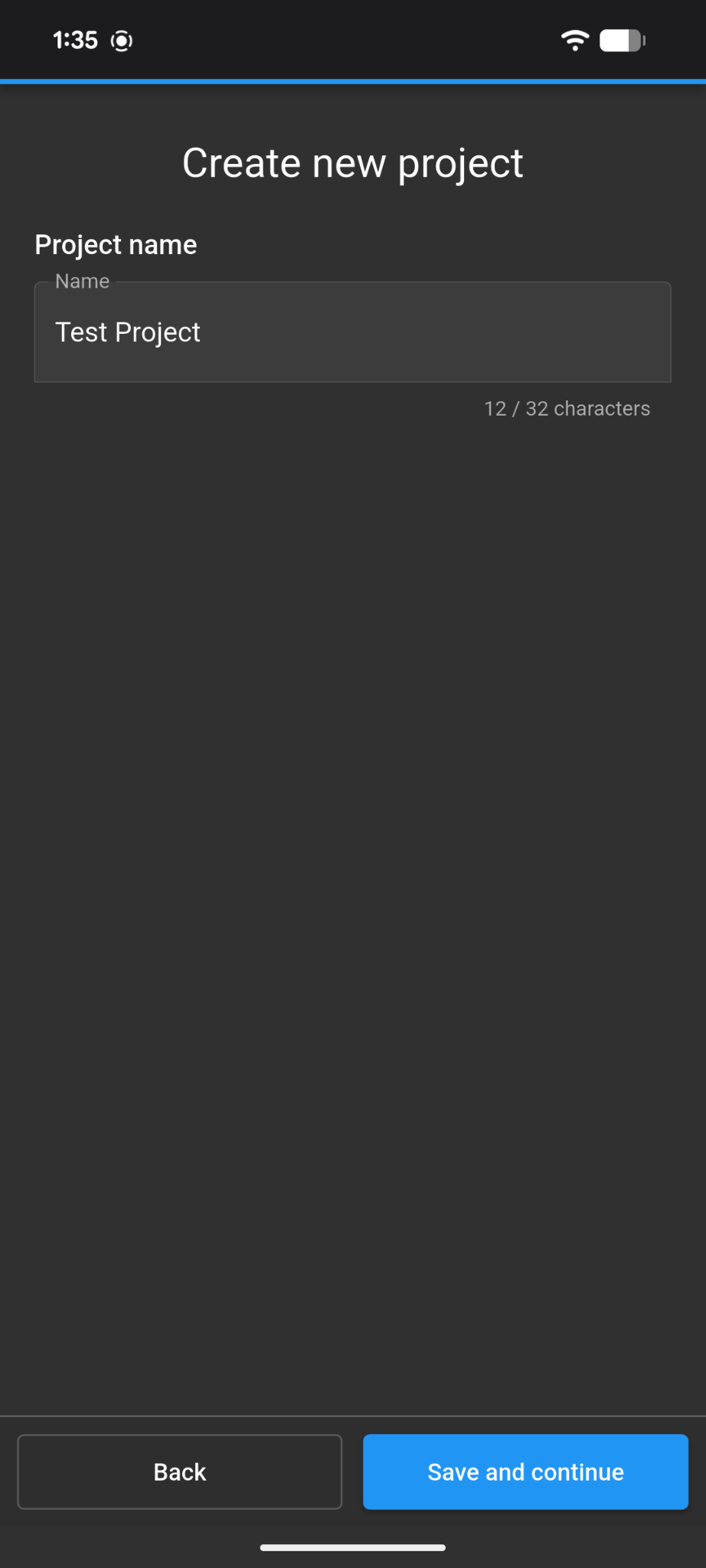
Enter a name for your project.
Note: By default, the Kinsman app uses your current location to generate a project name. You can edit the name using the on-screen keyboard and choose any name that best fits your project.
Tap Continue to create the project.
Expected Result
The new project appears on the Select Project screen and is available for use.
Editing a Project Name
Step 1: Open the Project Menu
From the map screen, tap the project bar near the bottom of the screen.
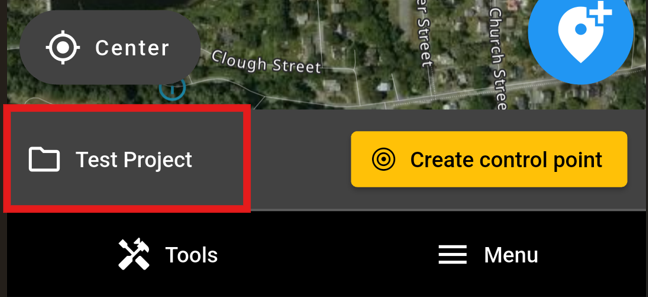
Step 2: Open Project Options
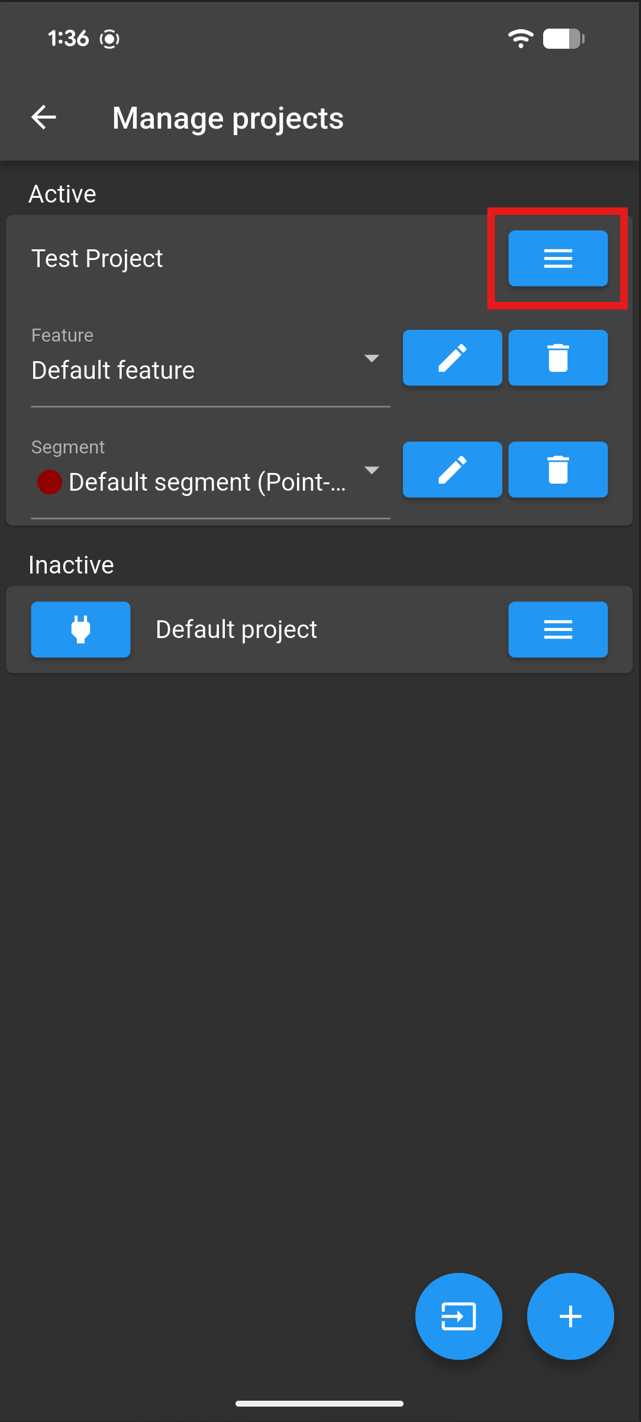
Tap the menu icon next to the project name.
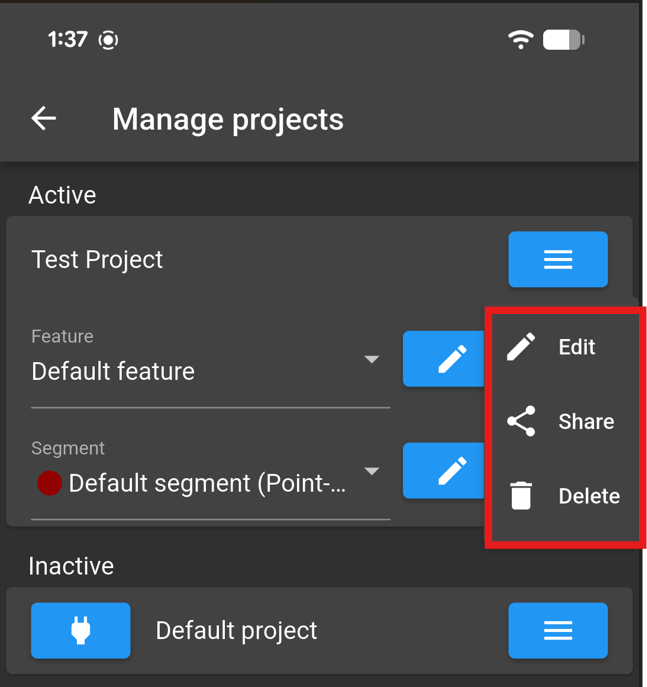
The following options appear:
Edit
Share
Delete
Tap Edit.
Step 3: Update the Project Name
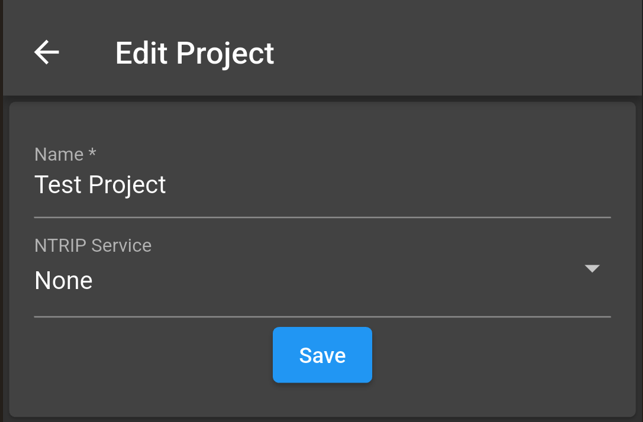
Enter the new project name and tap Save.
Expected Result
The project name updates throughout the app and appears in the project list with the new name.
Deleting a Project
Step 1: Open the Project Menu
From the map screen, tap the project bar near the bottom of the screen.
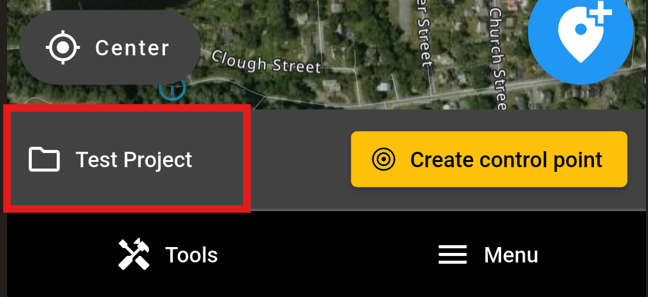
Step 2: Open Project Options
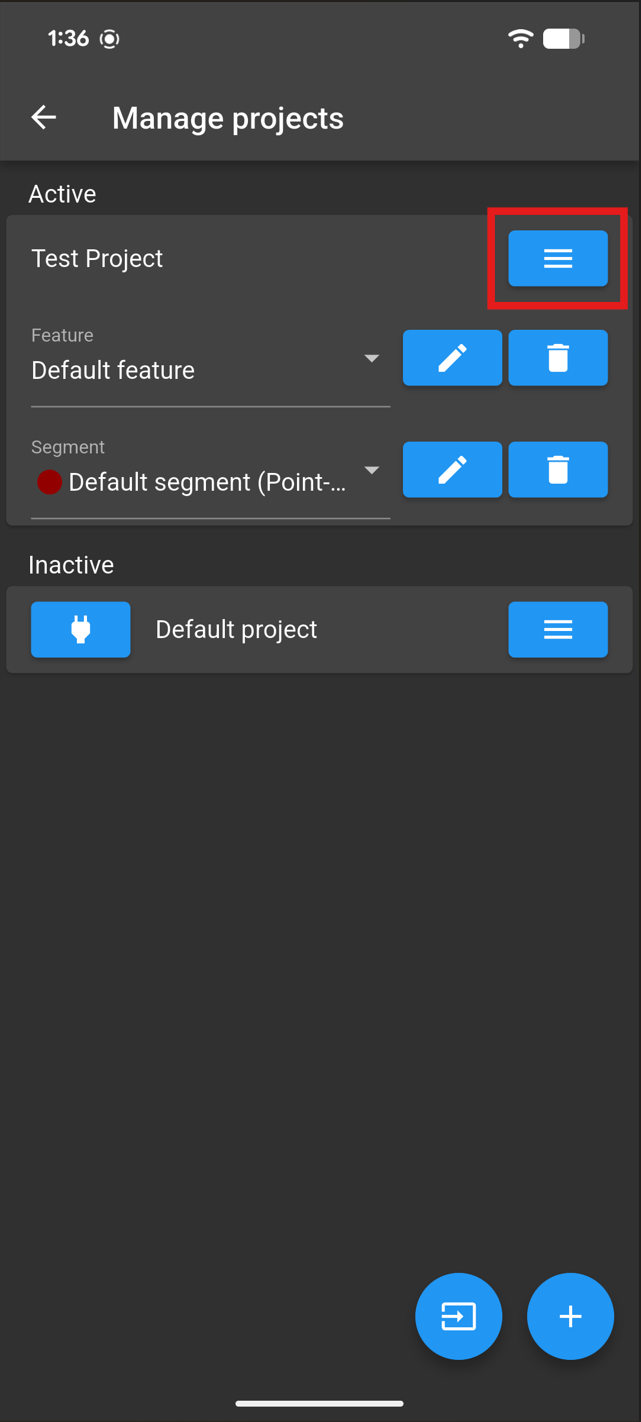
Tap the menu icon next to the project name.
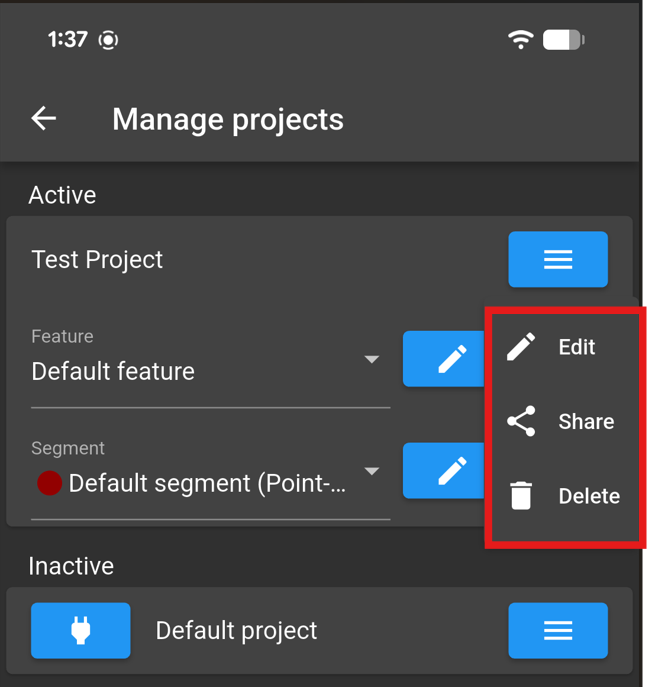
The following options appear:
Edit
Share
Delete
Tap Delete
Step 3: Confirm Deletion
Tap Delete to confirm deletion of the project
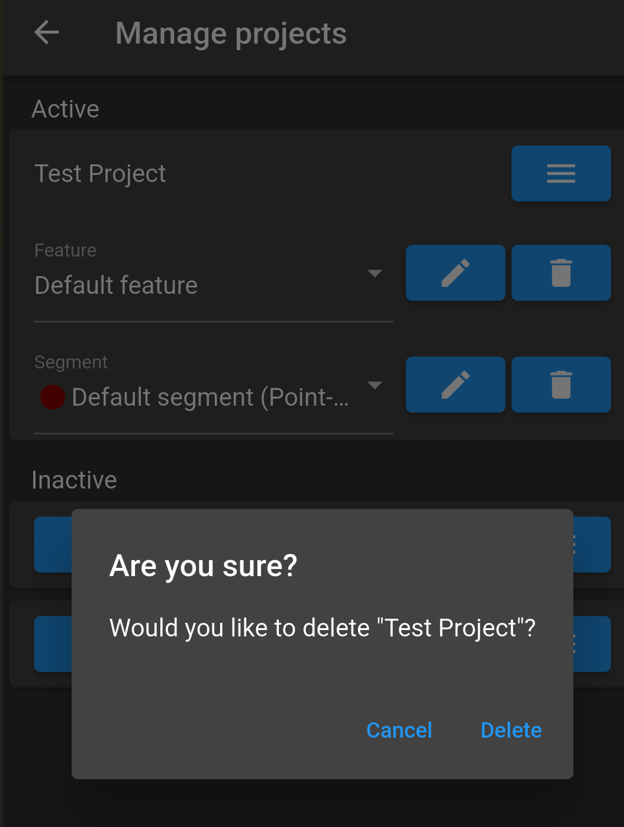
The app permanently removes the project from your account.
Note: Deleting a project cannot be undone. Make sure you no longer need the project before confirming deletion.
Expected Result
The project name updates throughout the app and appears in the project list with the new name.
What You Learned
In this article, you learned how to:
Understand what a project is and what information it stores.
Create a new project in the Kinsman mobile app.
Rename a project at any time.
Delete a project you no longer need.
Was this article helpful?
That’s Great!
Thank you for your feedback
Sorry! We couldn't be helpful
Thank you for your feedback
Feedback sent
We appreciate your effort and will try to fix the article