
Overview
This article explains how to export and import projects in the Kinsman SitePoint app.
There are two ways to transfer project data:
Individual project: Export a single project when you need to move or share a specific project, such as sending it to someone else working on the same job.
Full backup: Back up all projects on your device at once. This is best when moving to a new device or creating a backup of all your project data.
Important: Restoring a full backup replaces all projects currently stored on the receiving device. Any existing projects that are not included in the backup will be removed.
Before You Begin
Before transferring project data, make sure:
The Kinsman SitePoint app is installed on the receiving device.
You're signed in to the Kinsman SitePoint app.
You have a way to transfer the exported file between devices.
You can transfer files using a method such as:
Apple iCloud
Google Drive
Dropbox
Email
Exporting and Importing an Individual Project
Use this method when you want to transfer or share a single project without affecting other projects on the receiving device.
Export a Project
From the map screen, tap the project name in the bottom-left corner to open Manage Projects.
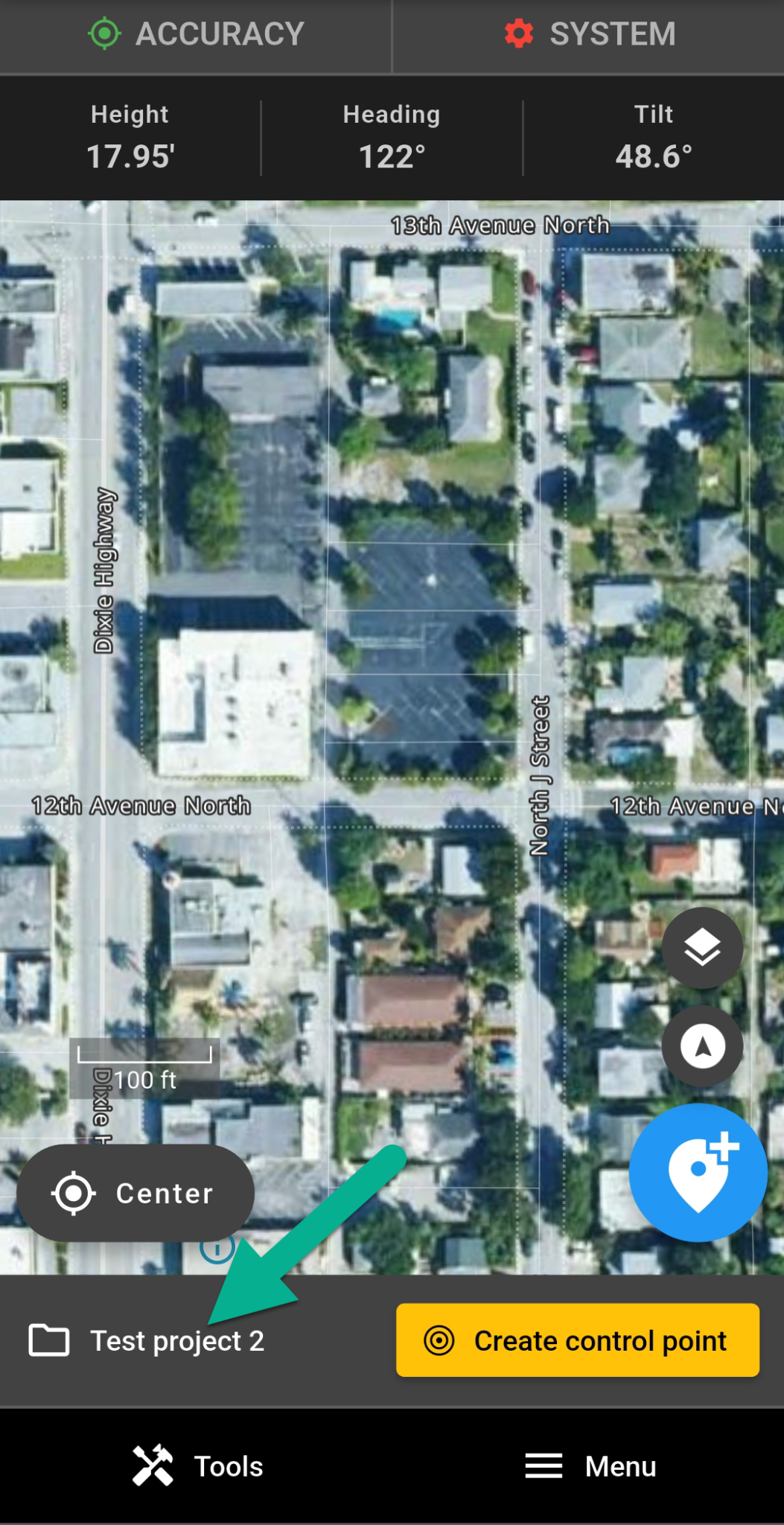
From the map screen, tap the project name in the bottom-left corner to open Manage Projects.
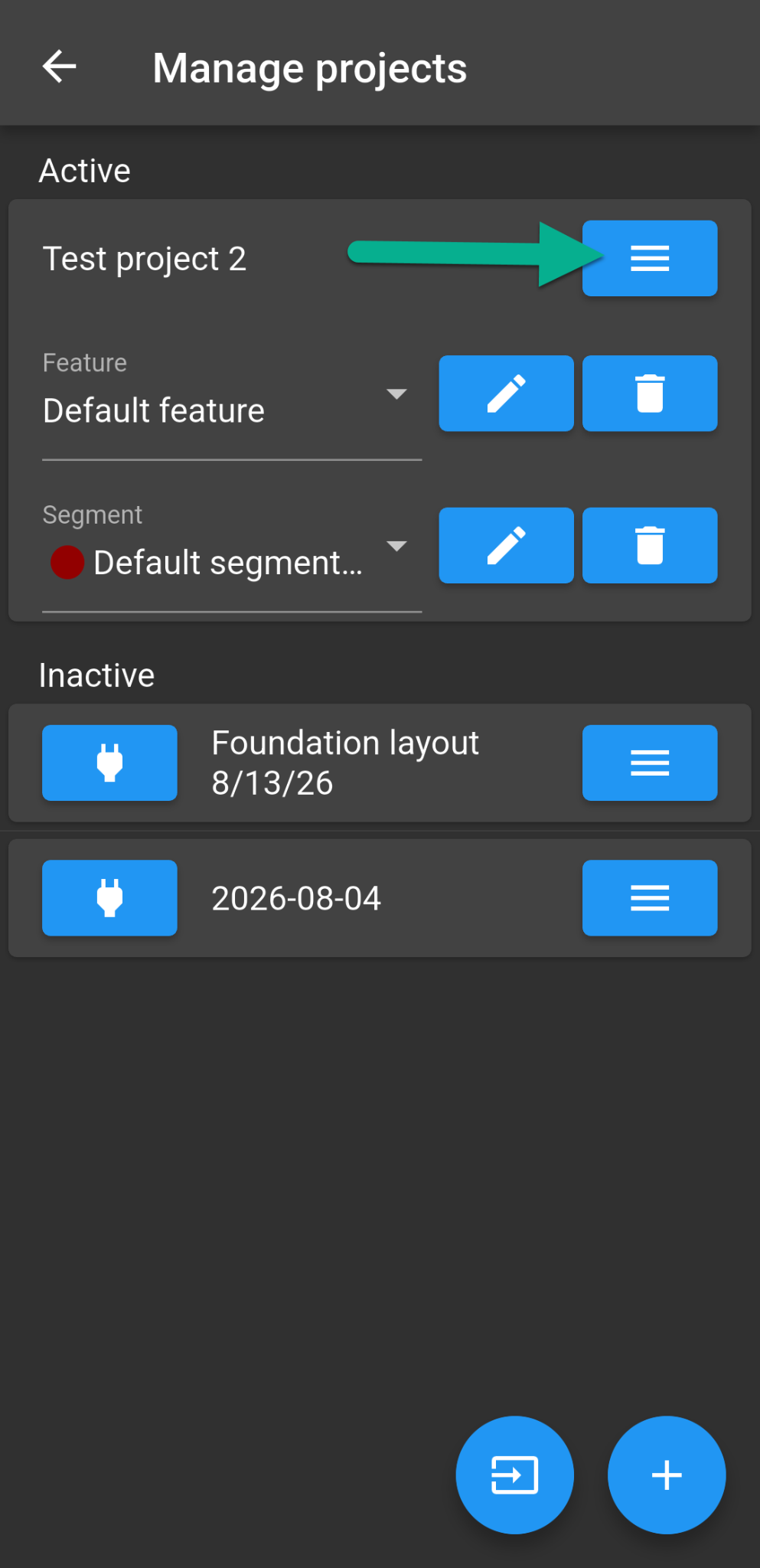
Tap the three-line menu next to the project you want to export.
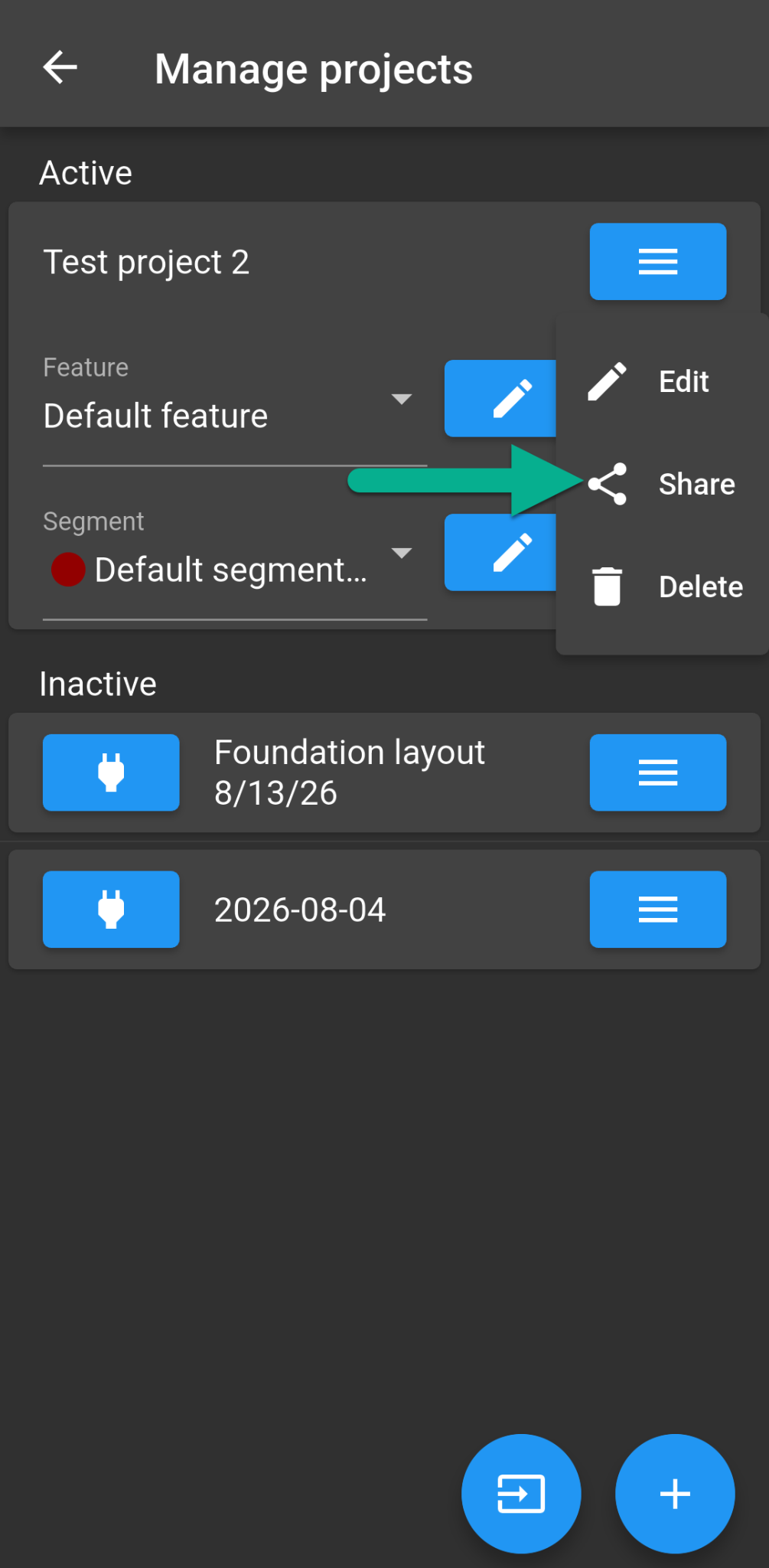
Tap Share
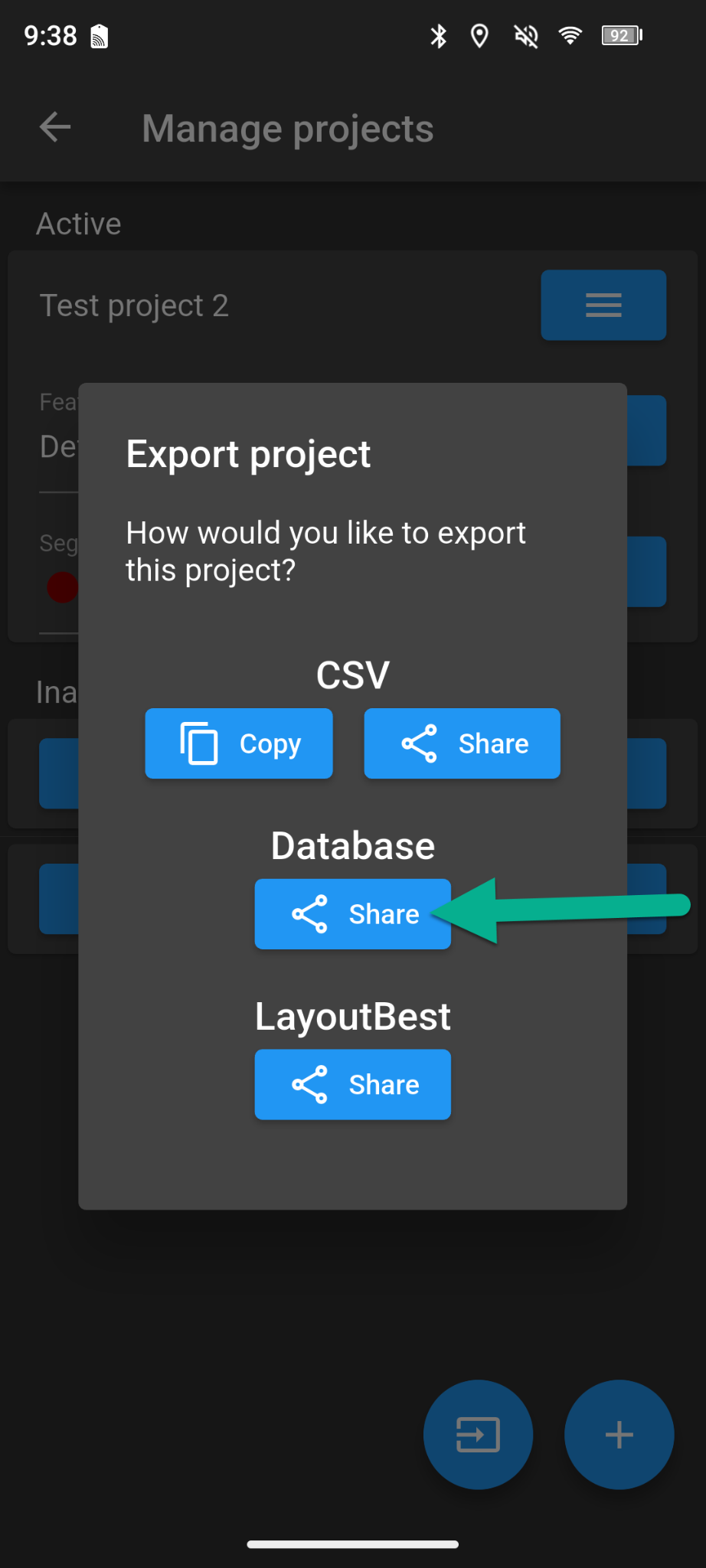
Under Database, tap Share
Your device will display the available options for saving or sharing the project file. Choose your preferred method, such as iCloud, Google Drive, Dropbox, or email.
Make sure the file is accessible from the device where you want to import the project.
Import a Project
On the receiving device, open the Manage Projects menu.
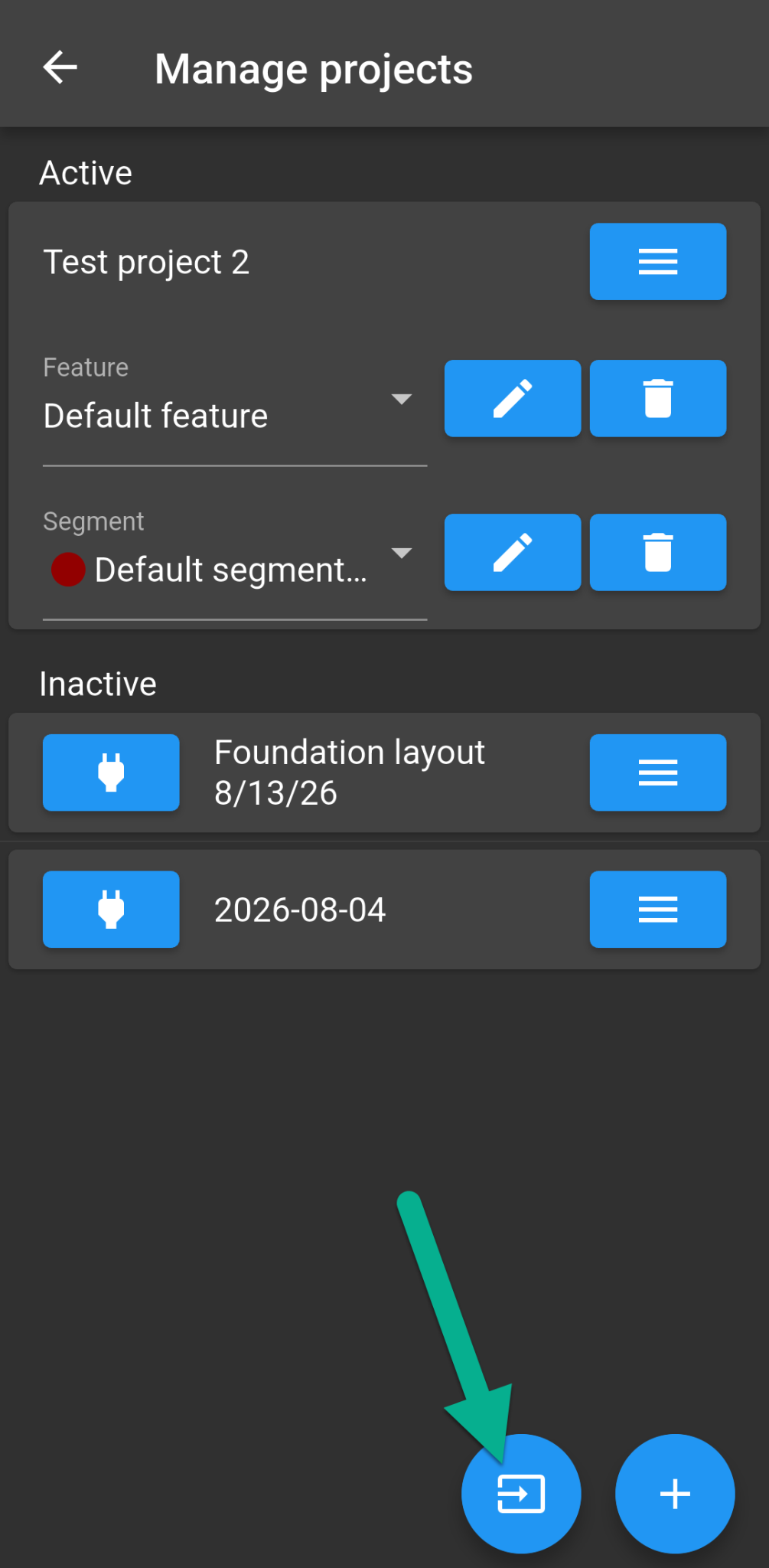
Tap the blue Import button on the bottom right side of the screen.
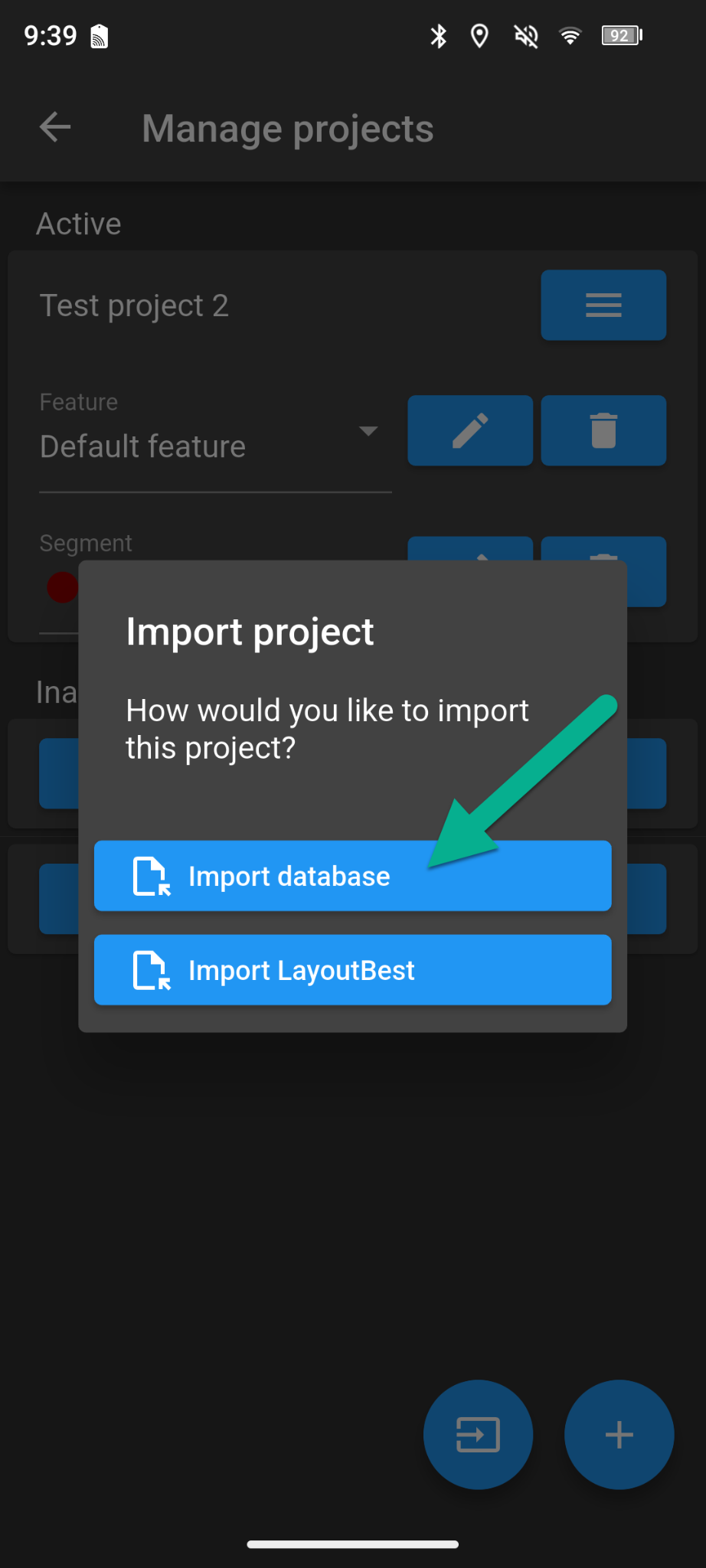
When prompted to select an import method, tap Import Database.
Your device's file browser will open. Navigate to the location of the project file and select it.
Once the import is complete, the project will appear on the receiving device and is ready to use.
Full Backup and Restore
Use Full Backup and Restore when you want to transfer all of your projects to another device or create a backup of all your project data.
Back Up Your Projects
From the map screen, tap Menu in the bottom-right corner.
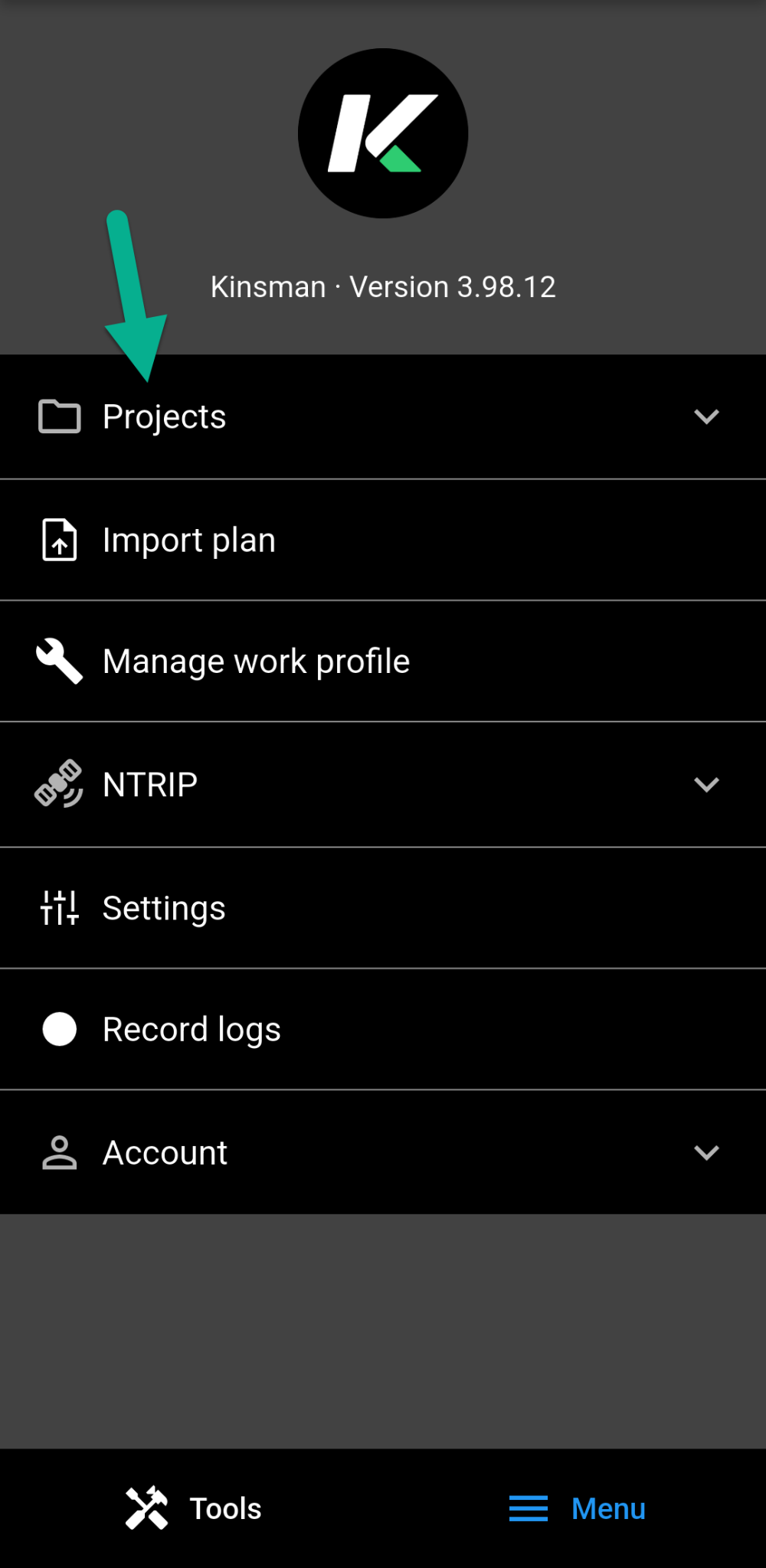
Tap Projects to expand the Projects menu.
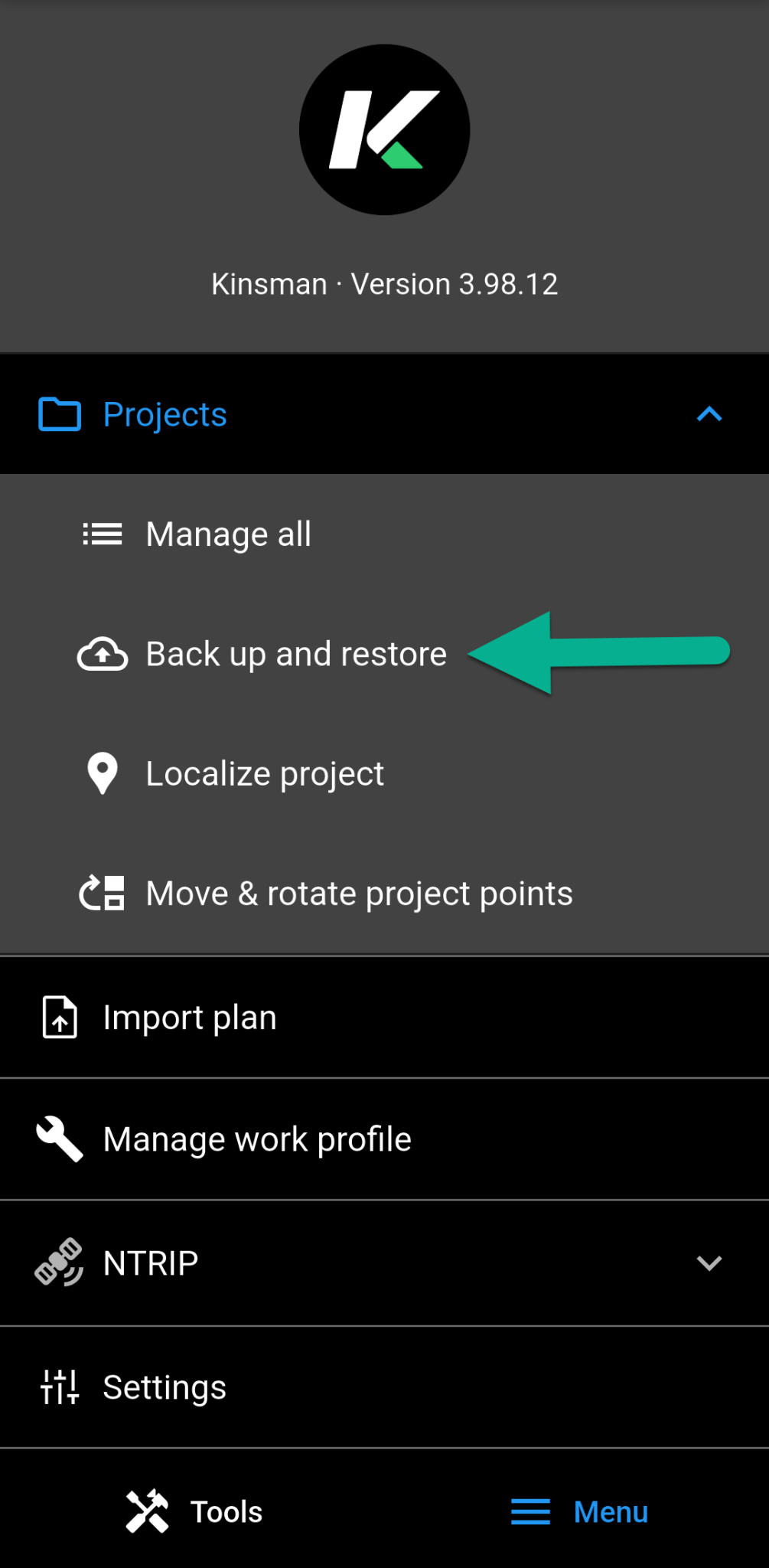
Tap Back Up and Restore.
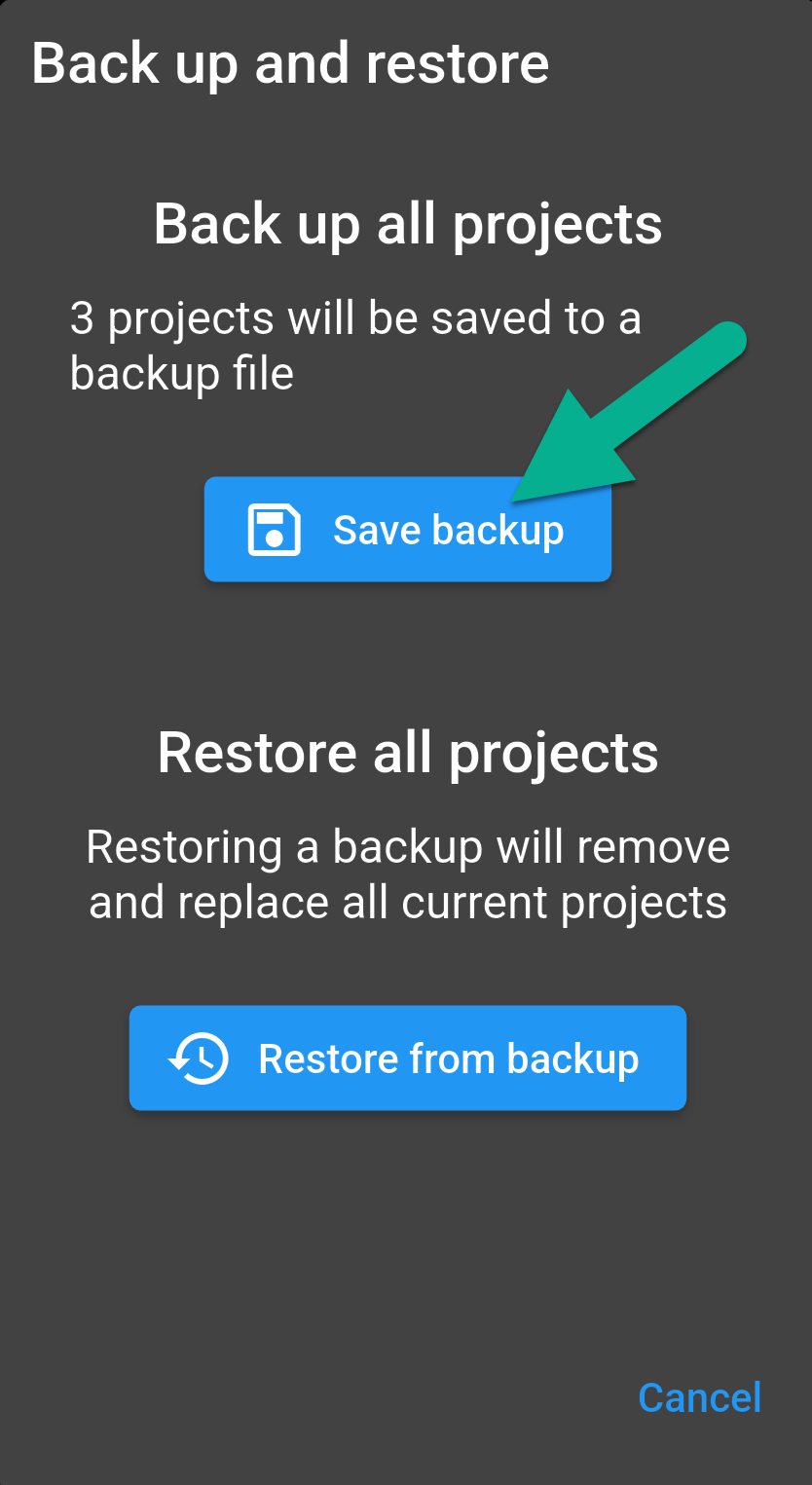
Tap Save Backup.
Your device will display the available options for saving or sharing the backup file. Choose your preferred method, such as iCloud, Google Drive, Dropbox, or email.
Make sure the backup file is accessible from the device where you want to restore it.
Restore Your Projects
On the receiving device, open the Kinsman SitePoint app and navigate to:
Menu > Projects > Back Up and Restore
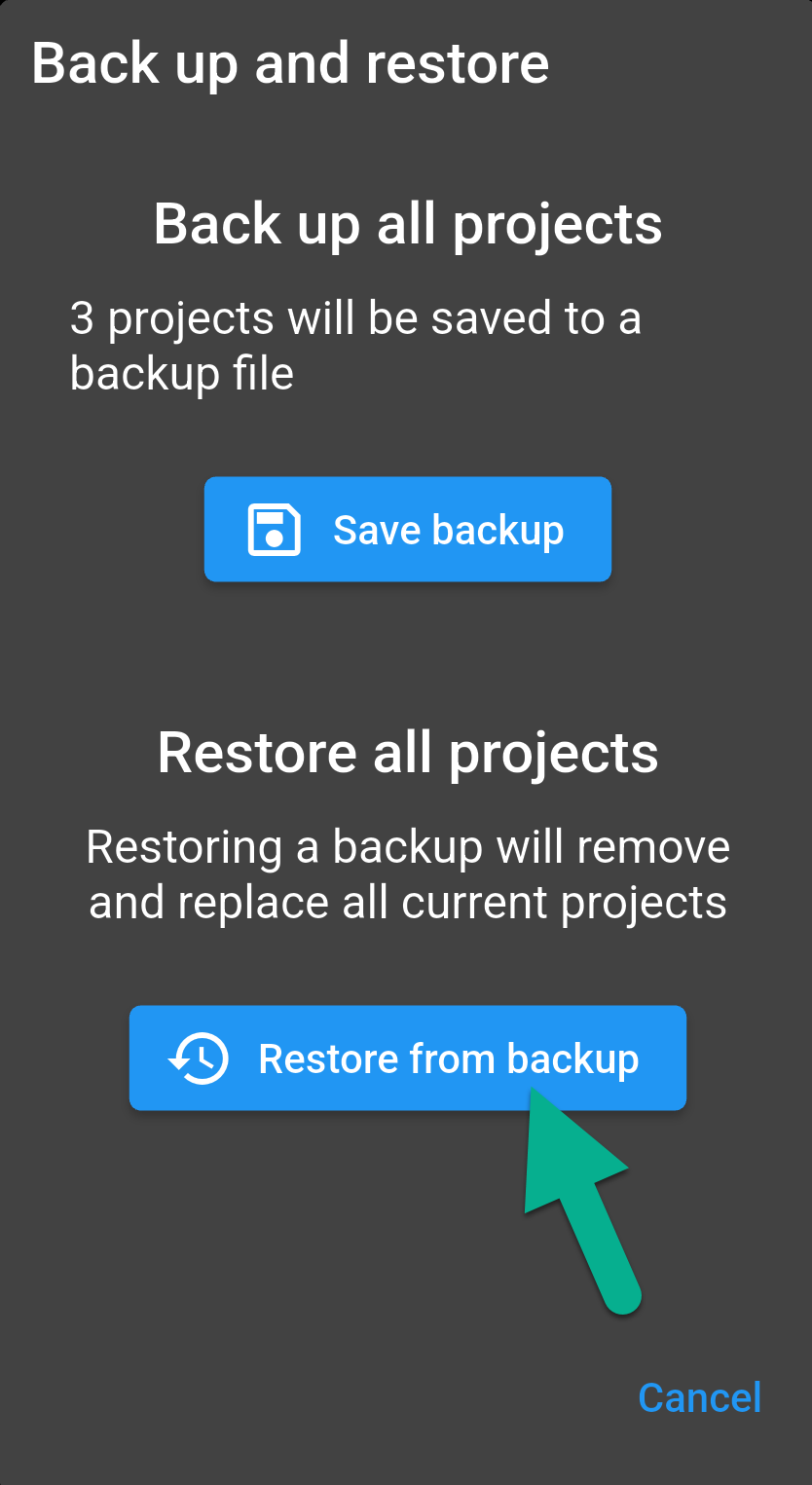
Tap Restore from Backup.
Your device's file browser will open. Locate and select the backup file you transferred from the original device.
The app will display a warning that restoring the backup will permanently delete the projects currently on the device and replace them with the projects contained in the backup
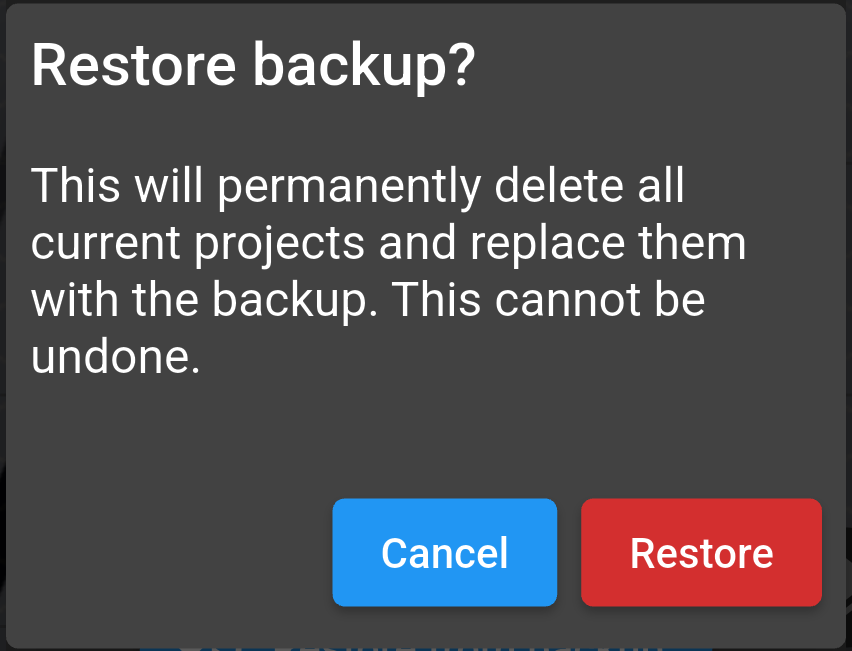
Confirm the restore to continue.
Important: Restoring a full backup replaces all projects currently on the receiving device. It does not add the backed-up projects to the existing project list. If you need to keep the projects already on the receiving device, use the Individual Project export and import process instead.
Once the restore is complete, the projects contained in the backup will be available on the receiving device.
Was this article helpful?
That’s Great!
Thank you for your feedback
Sorry! We couldn't be helpful
Thank you for your feedback
Feedback sent
We appreciate your effort and will try to fix the article