
Overview
The control point is one of the most important parts of using the SitePoint system. It is a precise, stationary, and easily identifiable reference point that maintains the accuracy of your project between sessions.
When you create a control point, the base SitePoint records its position relative to that location. This allows you to set up the base in a different location each time you return to the jobsite while keeping your project data accurately aligned.
Before You Begin
Before creating a control point, make sure you have:
Selected a work profile.
Connected your base and rover.
Created a new project.
This article begins on the project map screen.
Create a Control Point
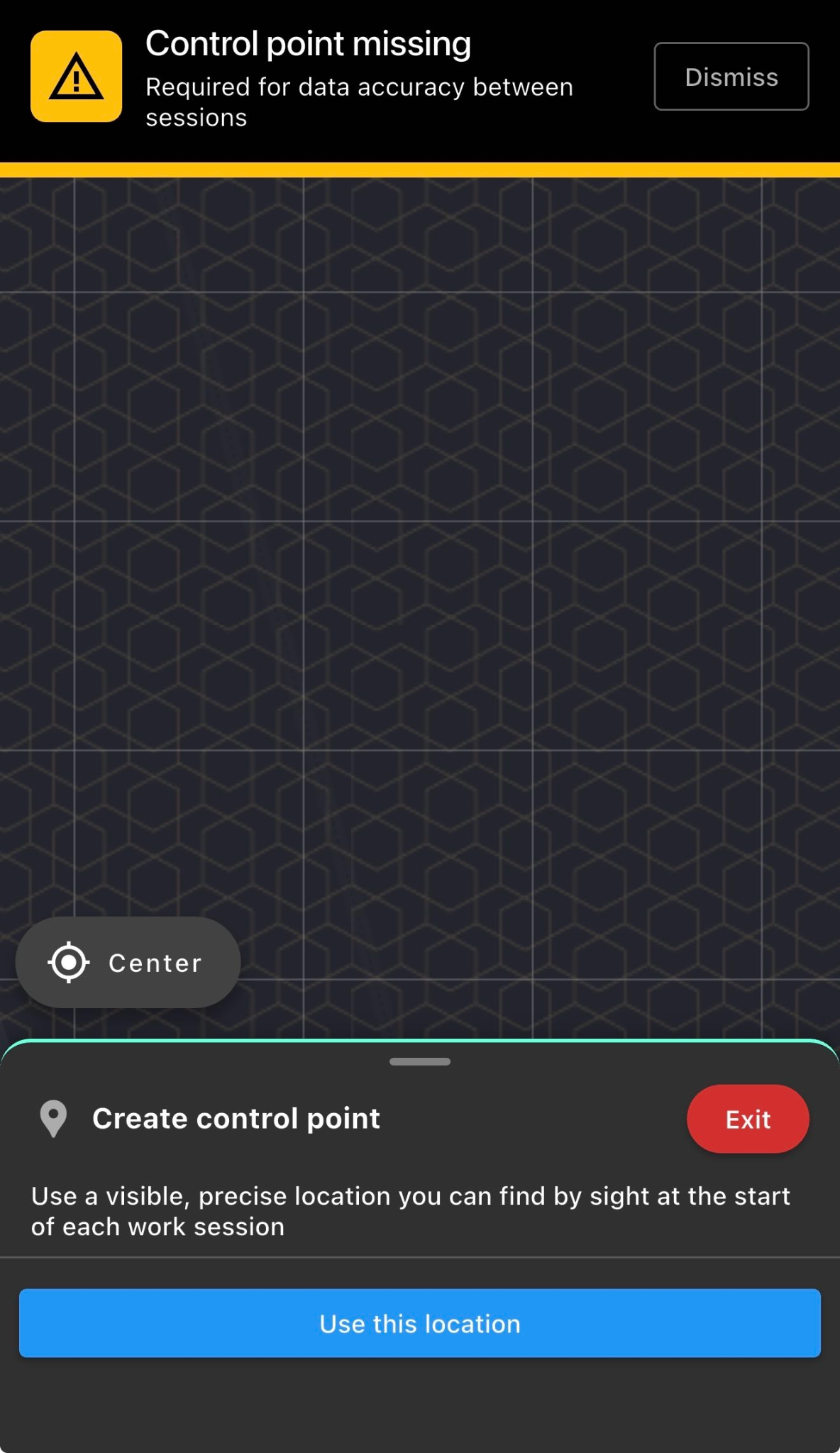
When you create a new project, the Kinsman SitePoint app will notify you that a control point is required.
Position the tip of the survey pole on the location you want to use as the control point.
Choose a permanent, easy-to-identify location, such as:
A survey nail
A rebar cap
The corner of a concrete slab
Another stable feature that will remain throughout the project
Tap Use This Location.
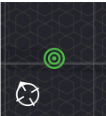
The control point is saved and displayed on the map using the control point icon.
Returning to the Jobsite
If the Base Hasn't Moved
If you temporarily leave the jobsite and the base remains powered on and broadcasting, the app will ask whether the base has moved when you re-open up the project
.
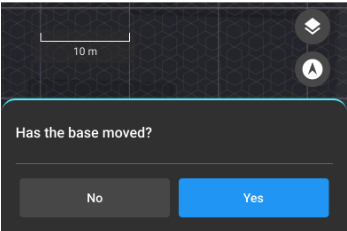
To continue, tap No and resume working within your project.
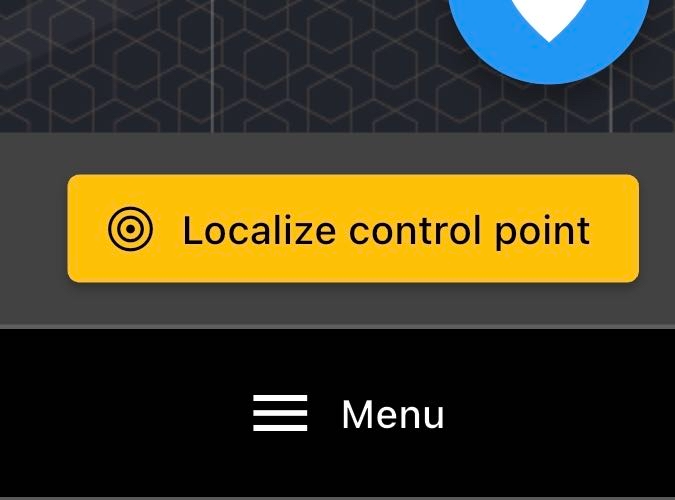
Note: If you tap Yes, you'll be prompted to localize the project by returning the rover to the control point and tapping Localize Control Point.
Returning the Next Day
When you return to the jobsite, power on the SitePoint and secure it to the tripod. The base does not need to be placed in the same location as the previous day.
Double-press the power button to enter Base Mode and begin the auto survey.
Best Practice: Set up your base as soon as you arrive at the jobsite. Starting the auto survey early gives the SitePoint more time to establish its reference position before you begin working.
Once the base is set up:
Open the Kinsman SitePoint app.
Select your work profile.
Connect your base and rover.
Open your project.
Position the survey pole precisely on the control point.
Tap Localize Control Point.
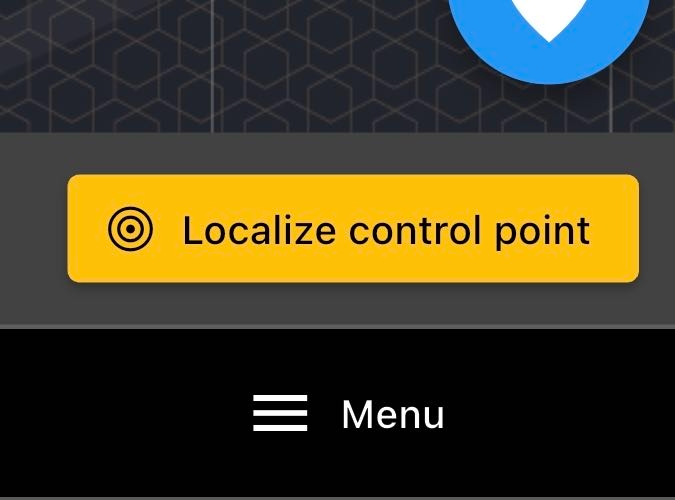
This re-establishes the project's coordinate system and ensures your project data remains accurately aligned.
Important: Always localize the control point before creating new points or using any project tools.
Moving the Base During a Project
If you need to move the base while working:
Close the project in the Kinsman SitePoint app.
Move the base to its new location.
Reopen the project in the Kinsman SitePoint app.
When prompted, indicate that the base has moved by tapping Yes.
Return the rover to the control point and tap Localize Control Point.
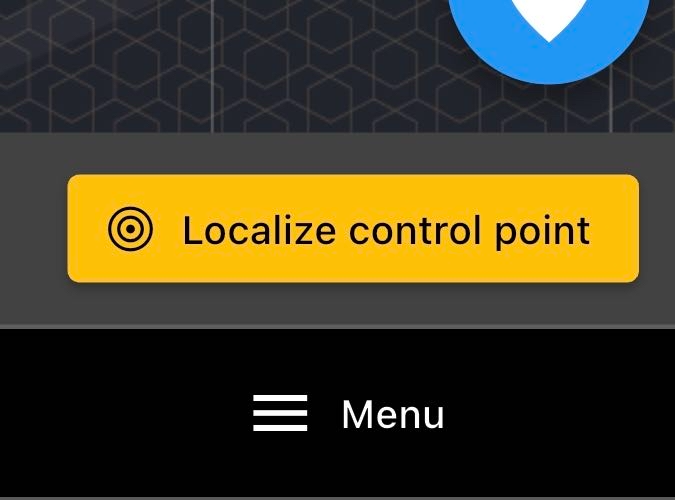
Your project will then be re-aligned using the control point.
Moving a control point
There may be situations where you need to move your control point during a project.
Important: Choose a new control point that is permanent, stable, and easy to identify so you can return to the exact location when localizing your project in the future.
From the project map, tap your control point to open the control point menu.
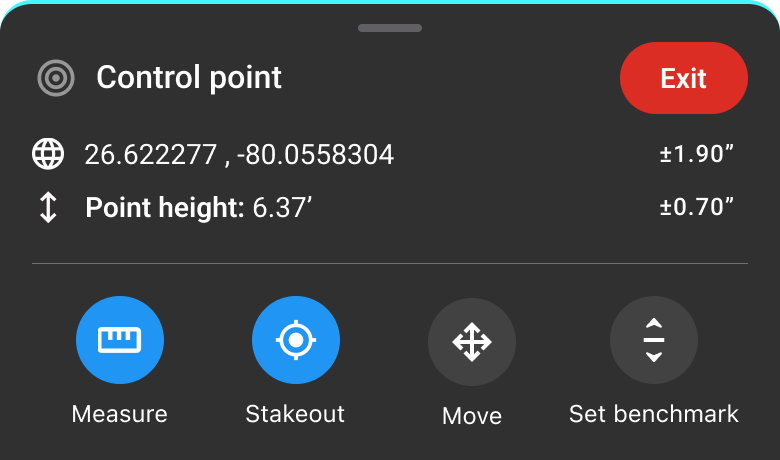
Tap Move.
Take your rover to the new control point location and position it precisely where you want to establish the new control point.
Tap Use This Location.
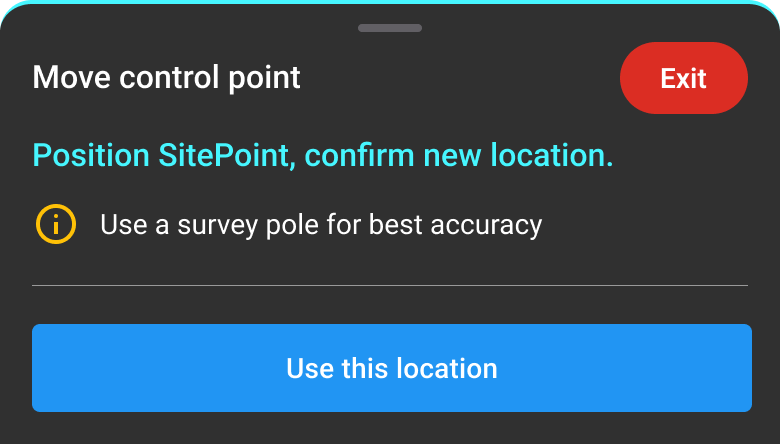
The app will ask you to confirm that you want all project data to reference the new control point. Tap Confirm to continue.
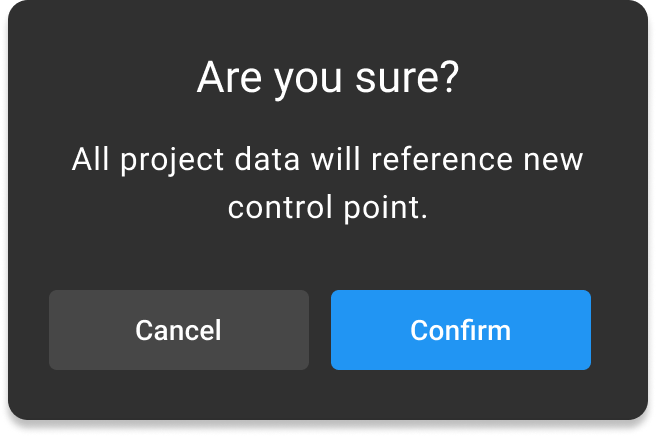
Once complete, the Kinsman SitePoint app will confirm that the control point has been moved.
Was this article helpful?
That’s Great!
Thank you for your feedback
Sorry! We couldn't be helpful
Thank you for your feedback
Feedback sent
We appreciate your effort and will try to fix the article