
Overview
This article explains how to use the Dual distance stakeout tool in the Kinsman SitePoint app.
Dual distance stakeout helps you locate a point using known distances from two existing points or landmarks.
For example, you may need to locate the corner of a septic system that is set 35 feet from one stake and 45 feet from another. Instead of pulling two tapes and trying to find where those measurements meet, enter both distances into the app.
The Kinsman SitePoint app will calculate the two possible locations that match those measurements, allowing you to select the correct location and stake it out.
Before You Begin
Before you begin:
- Set up your base and initialize your rover.
- Make sure your control point is established and localized.
- Drop points at the two locations you'll be measuring from.
Step-by-Step Instructions
Step 1 — Access Dual distance stakeout
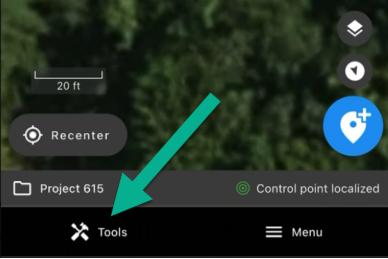
From the map screen, tap Tools.
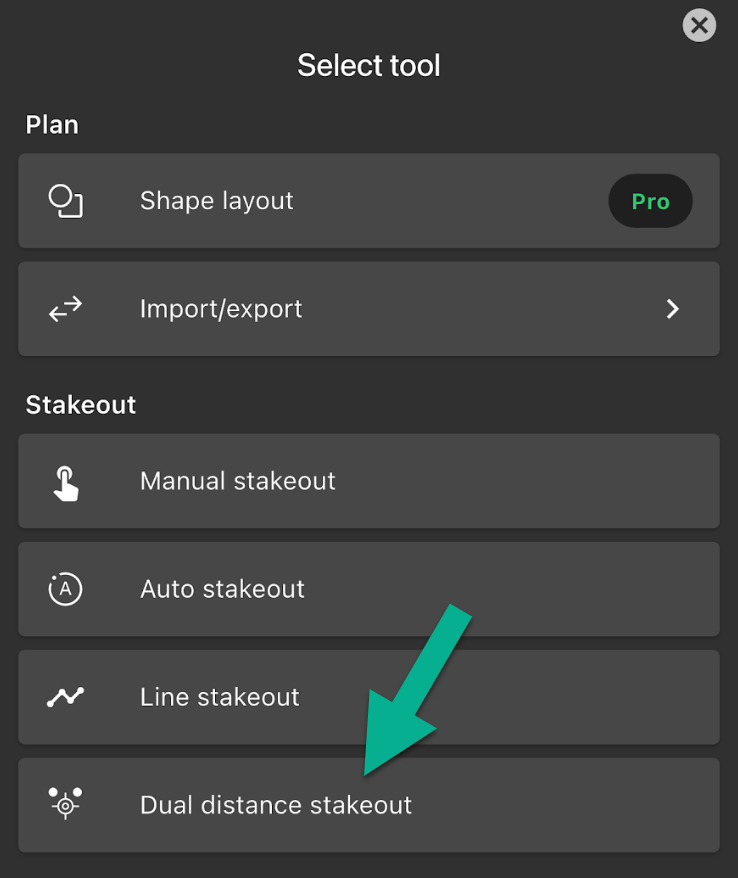
Under Stakeout, tap Dual distance stakeout.
Step 2 — Select Your Points and Enter the Distances
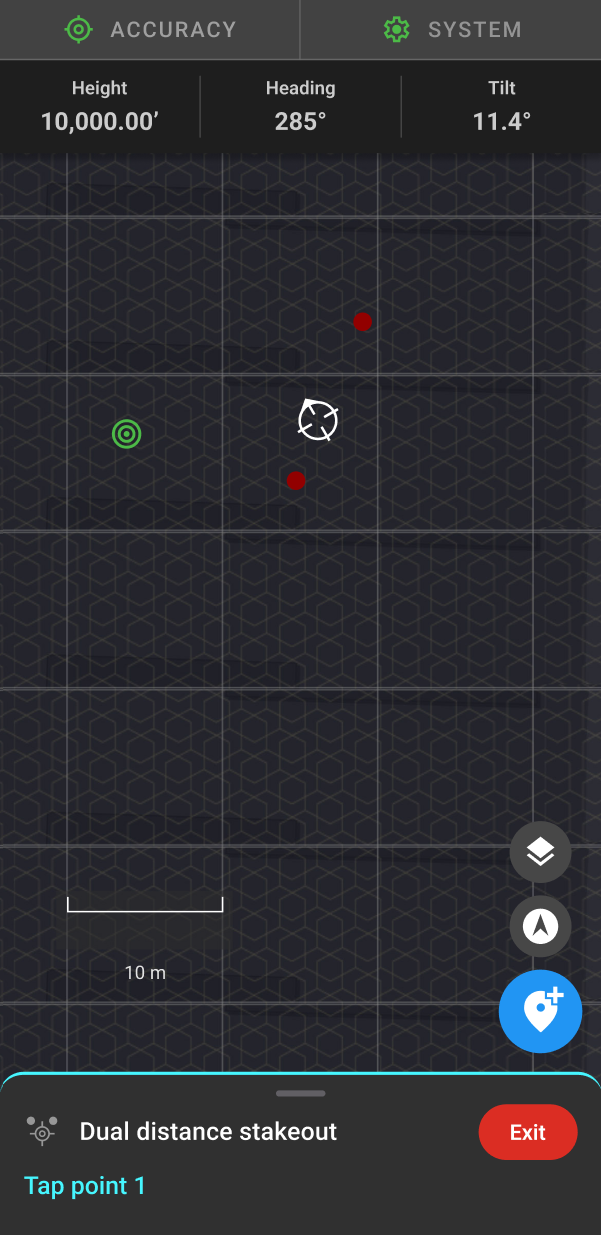
Tap the first point you'll be measuring from.
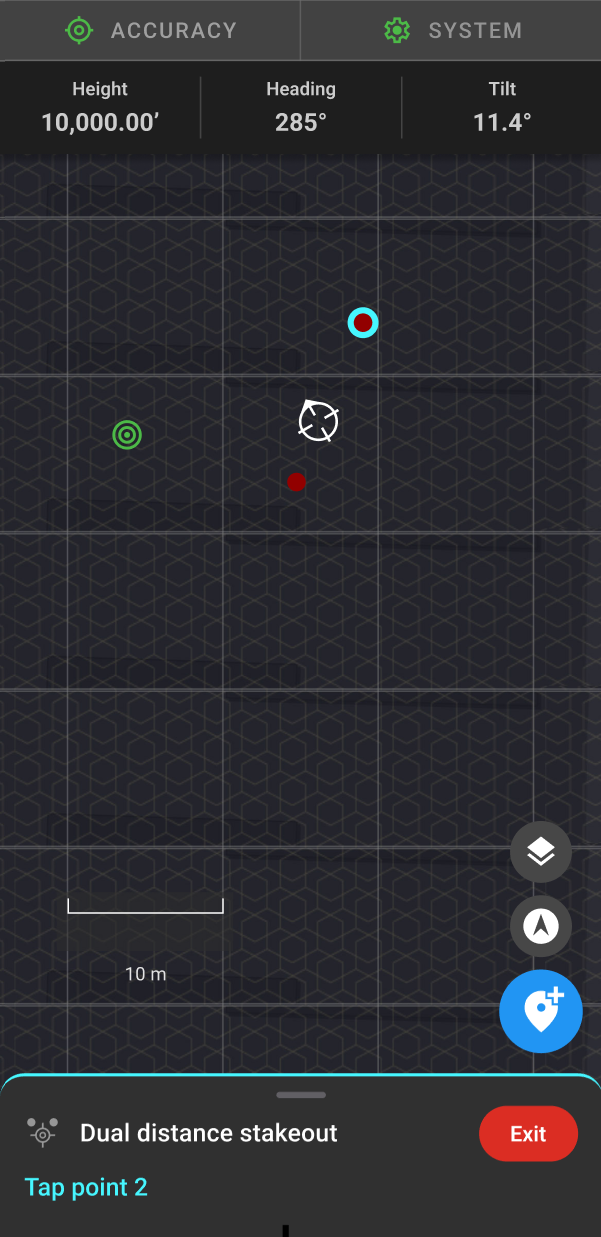
Tap the second point.
Enter the known distance from the first point and the known distance from the second point.
Tap Apply.
Step 3 — Select and Stake Out the Intersection
After applying the distances, the app will display a radius around each of your selected points.
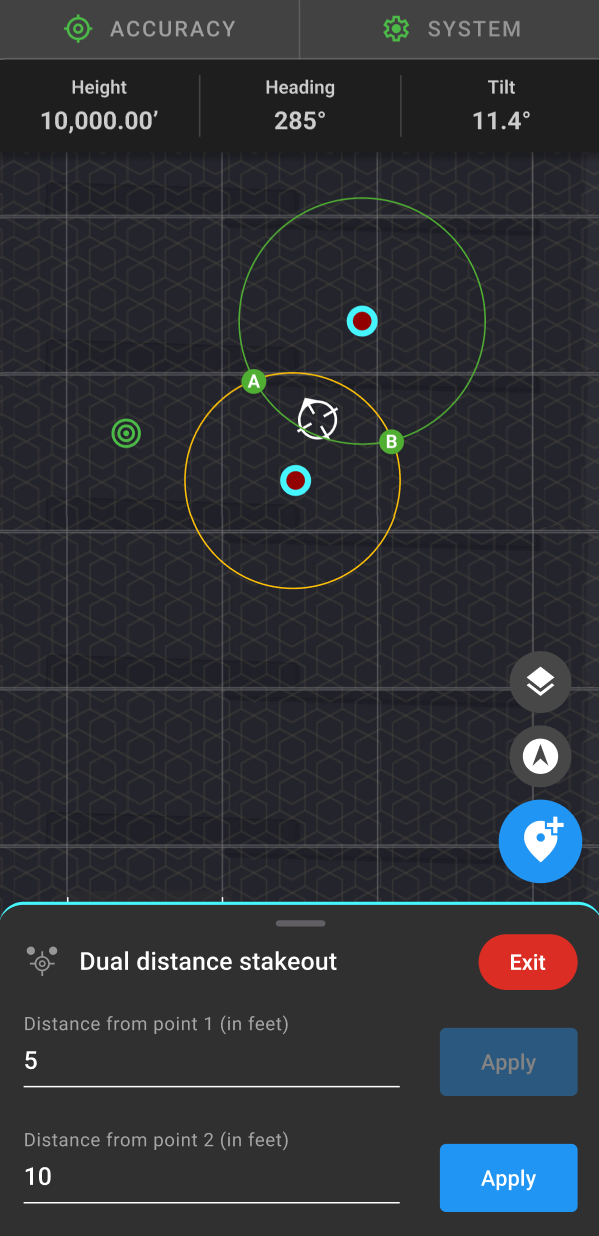
Where the two radii intersect, you'll see two possible locations labeled A and B.
Select the location you want to find.
The app will take you directly into stakeout and guide you toward the selected location.
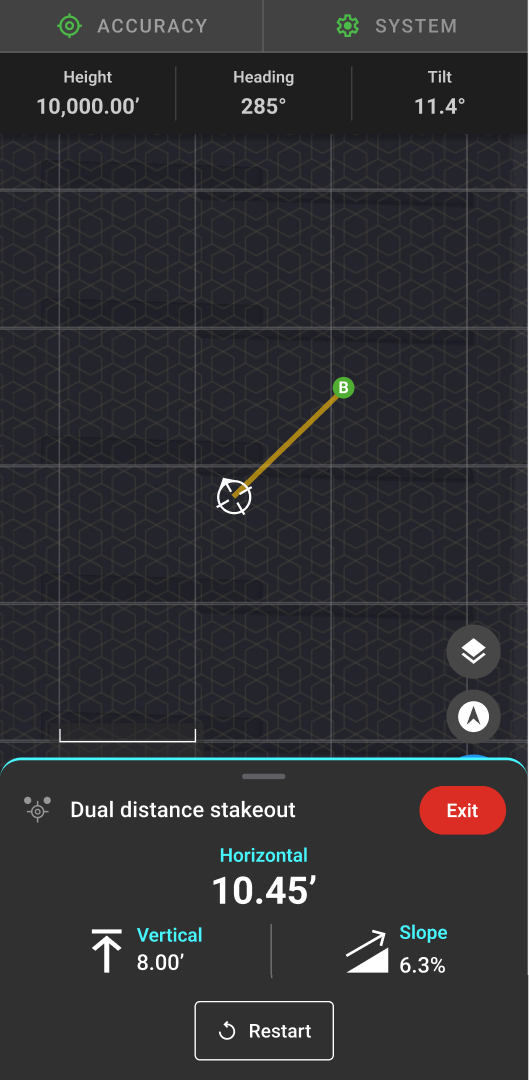
As you approach the point, the app will enter Bomber Mode.
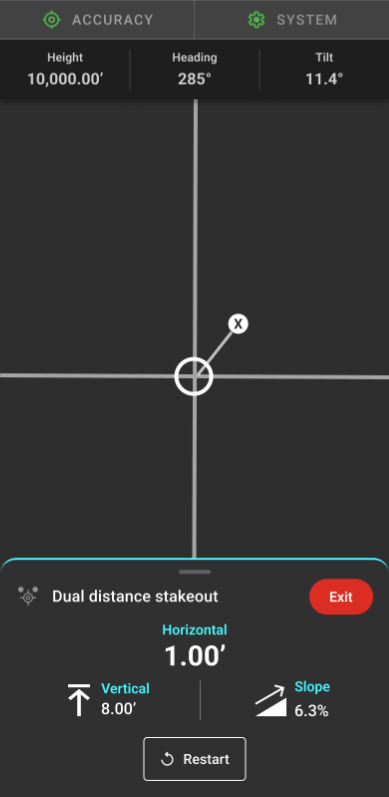
Bomber Mode provides a zoomed-in view of your distance to the point, helping you position the rover precisely over the location.
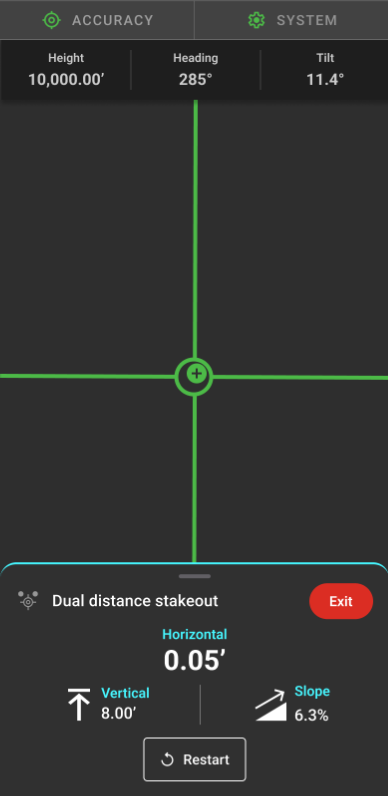
Once you've located the point, you can mark its position on the ground.
When you exit the tool, the point will automatically be created in your project.
Was this article helpful?
That’s Great!
Thank you for your feedback
Sorry! We couldn't be helpful
Thank you for your feedback
Feedback sent
We appreciate your effort and will try to fix the article