
Overview
This article explains how to drop points using a SitePoint mounted on a survey pole in the Kinsman SitePoint app. It also covers how to manage your points by renaming them, setting an offset height, measuring, staking out, setting a benchmark, or deleting them.
Before You Begin
Before you start, make sure you have:
Selected a work profile.
Connected your SitePoints.
Completed initialization.
Created or selected a project.
Established a control point.
Step-by-Step Instructions
Step 1 — Drop a Point
Position the tip of the survey pole where you want to create the point.
Tap the Drop Point icon.

The new point appears as a red dot on the map.

Step 2 — Open the Point Menu
Tap a point on the map to open the point menu.
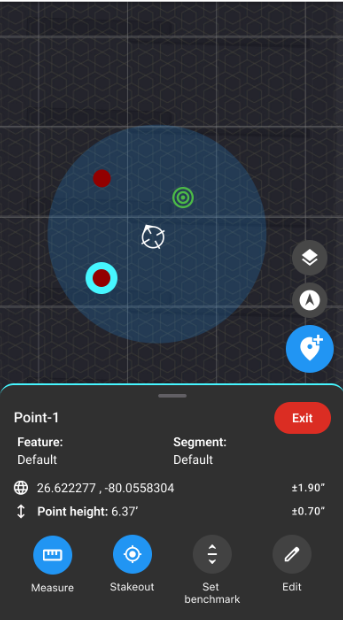
From here you can:
Measure
Stakeout
Set Benchmark
Edit
Note: Setting a benchmark is covered in a separate article.
Step 3 — Edit a Point
Tap Edit.
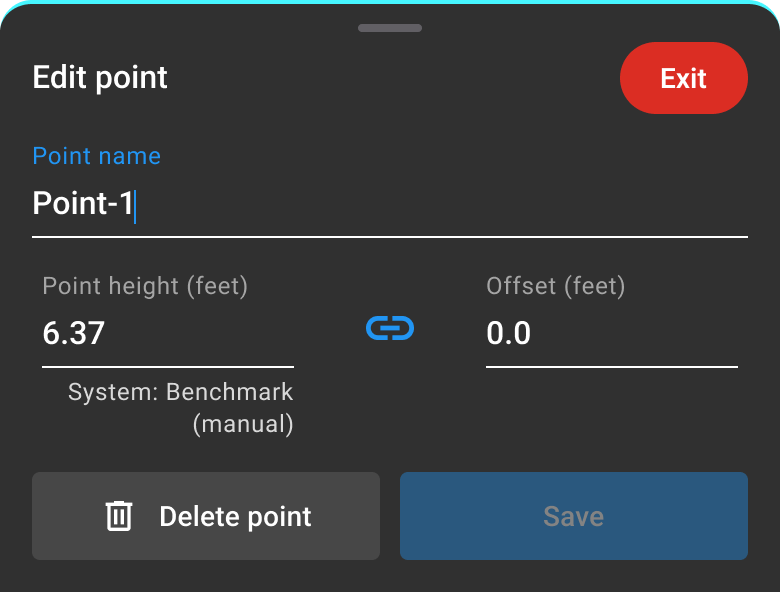
From this screen you can:
Rename the point.
Set an offset height.
Delete the point.
To rename the point, tap the existing name and enter a new one.
To apply an offset, tap the height value or enter the desired offset in the Offset field.
Step 4 — Measure a Point
Tap Measure to open the measurement tools.
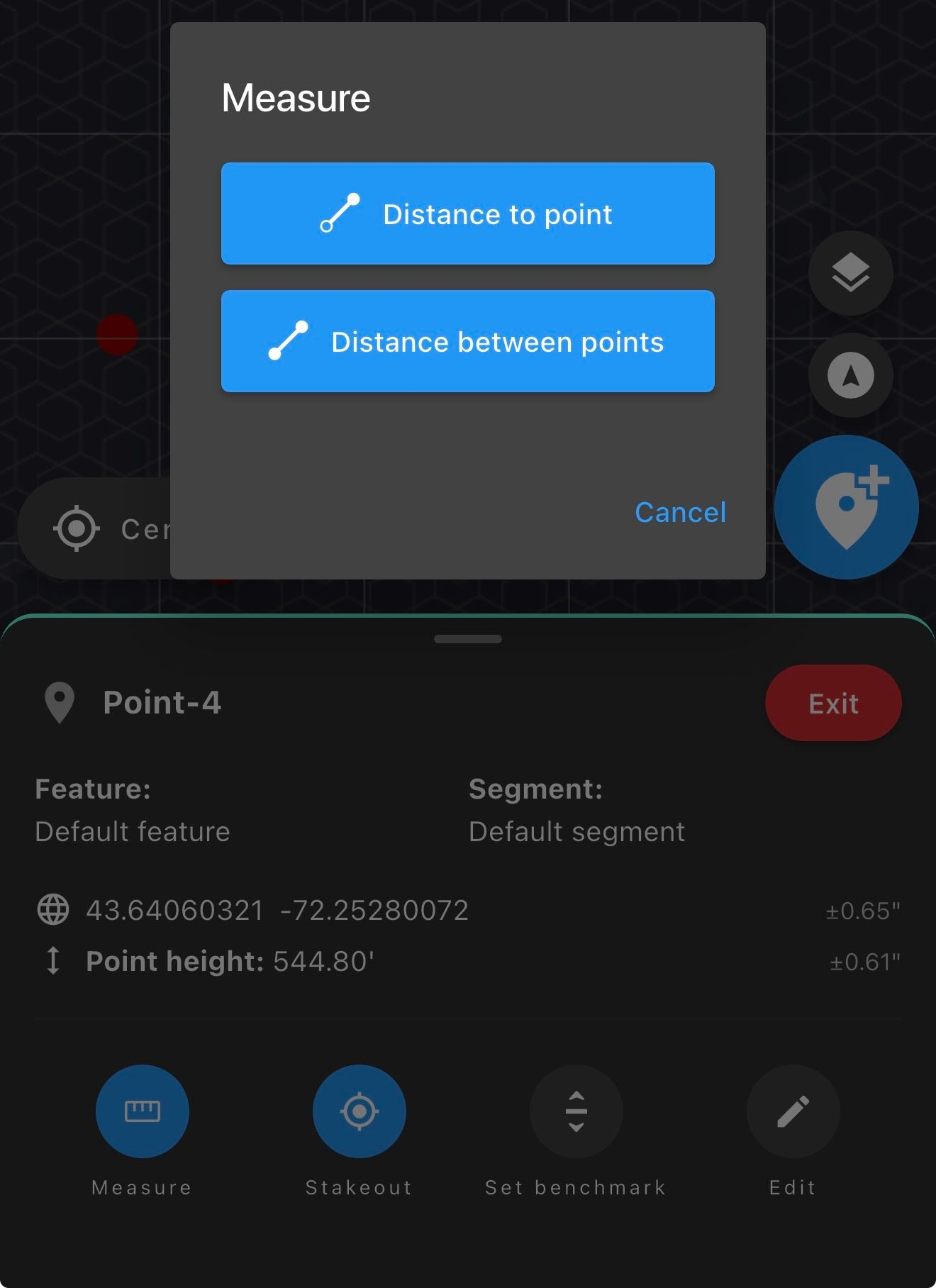
Distance to Point
Measures the distance from your rover's current position to the selected point.
Distance Between Points
Measures the distance between two points.
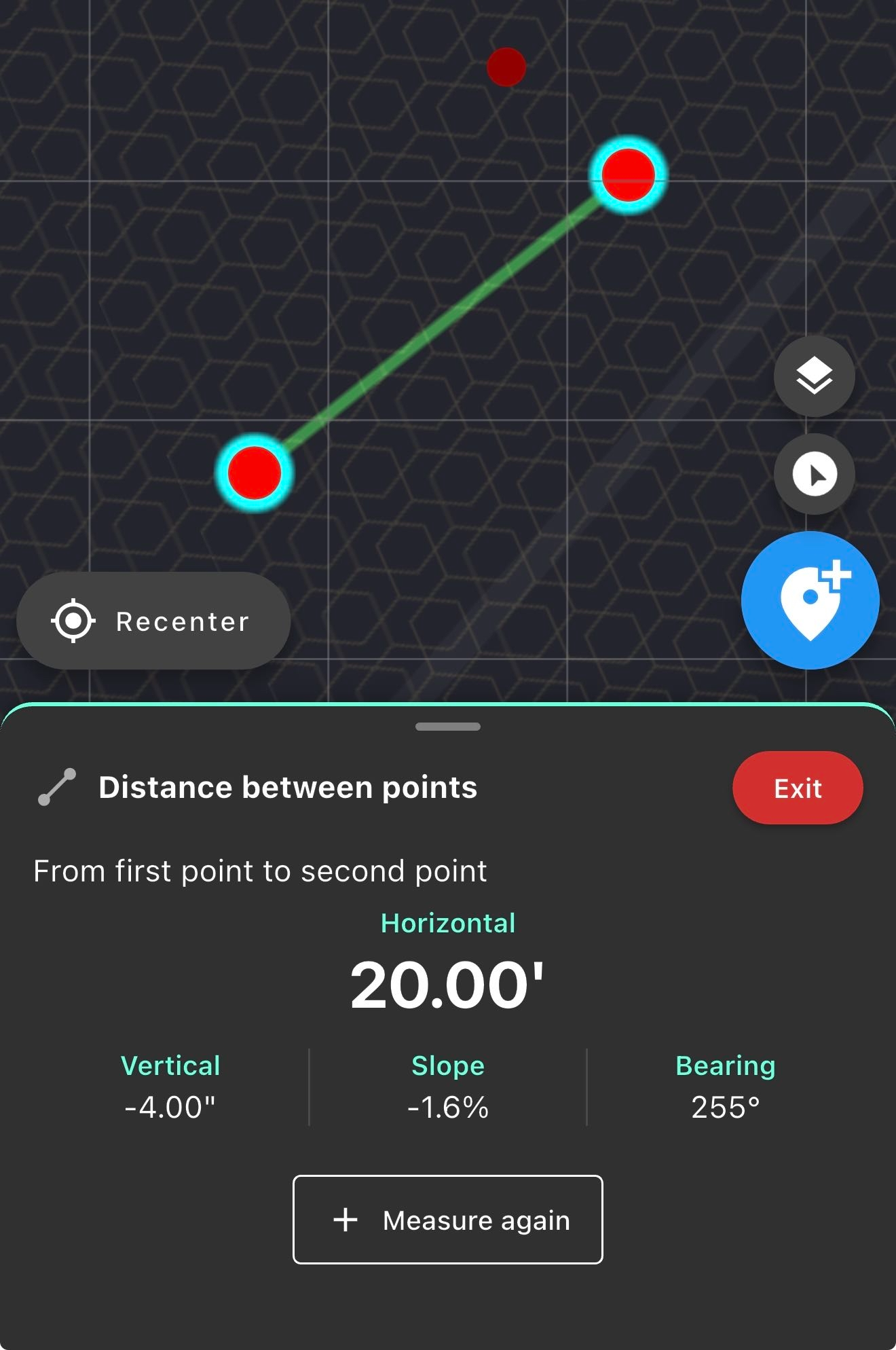
After selecting Distance Between Points, tap a second point on the map.
The Kinsman SitePoint app displays:
Horizontal distance
Vertical distance
Slope
Bearing
Step 5 — Stake Out a Point
Tap Stakeout to begin navigating to the selected point.
The Kinsman SitePoint app guides you to the point using visual guidance.
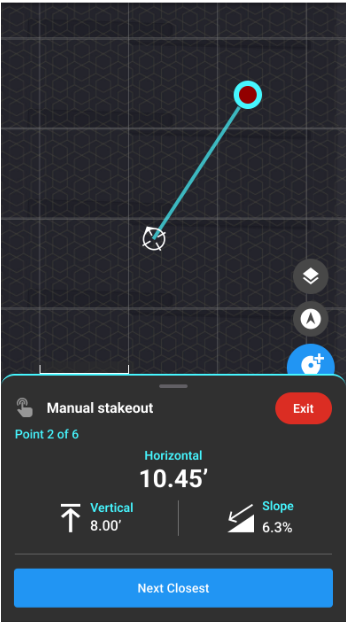
As you approach the point, the app enters Bomber Mode, providing both visual and audible feedback to help you locate the point accurately.
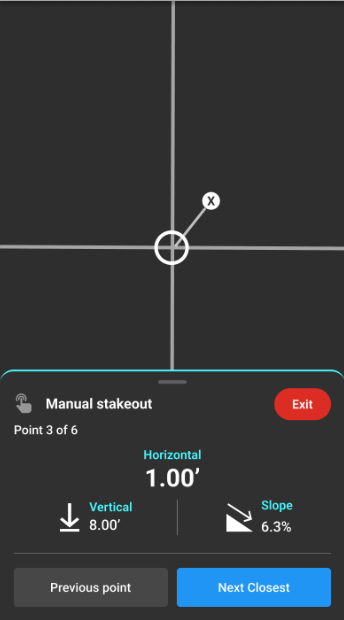
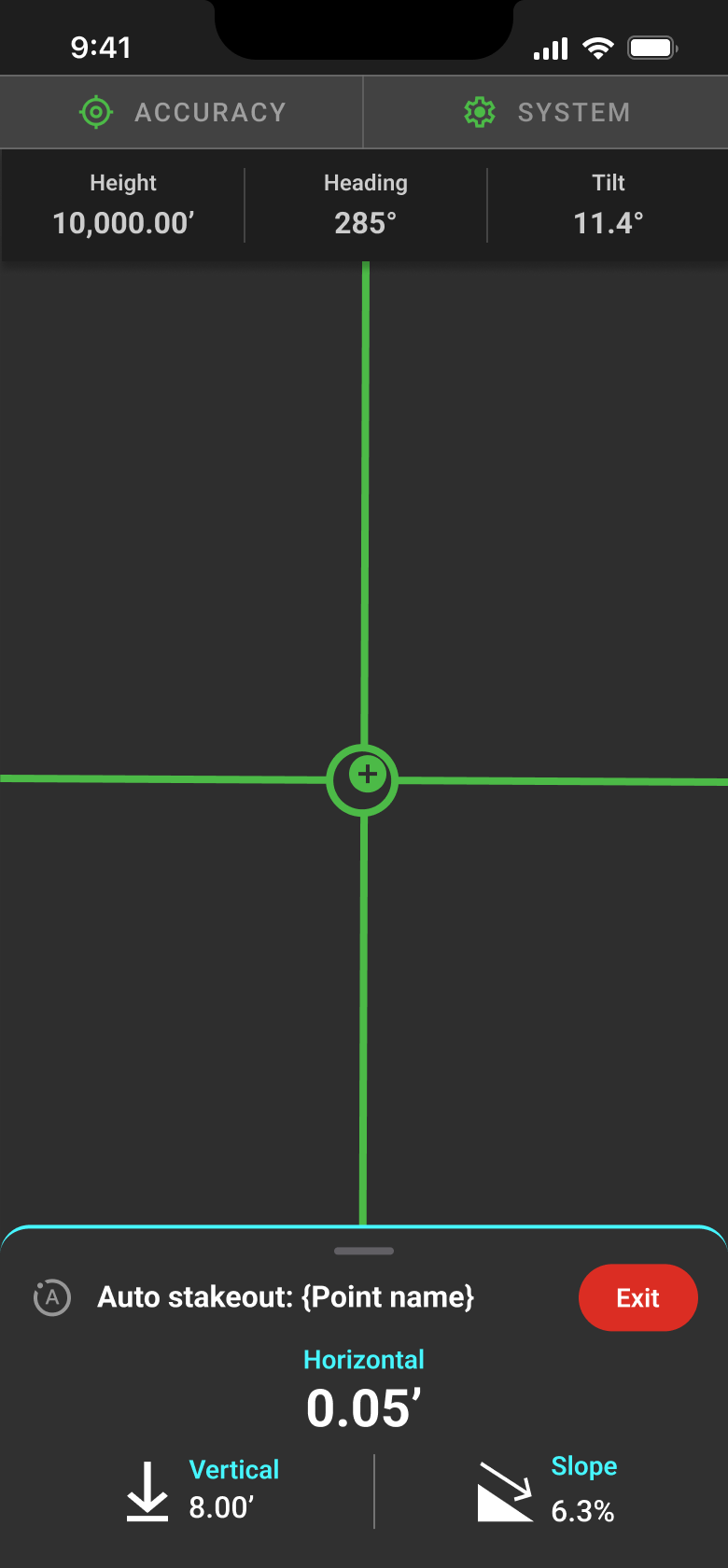
When you're directly over the point, the crosshairs turn green, indicating that the tip of your survey pole is within a half inch of the target.
Was this article helpful?
That’s Great!
Thank you for your feedback
Sorry! We couldn't be helpful
Thank you for your feedback
Feedback sent
We appreciate your effort and will try to fix the article